Color Adjust
The Color Adjust section provides options for modifying the base color of the material. This is applied directly after the main Color and Normals section, and will not affect any other sections that modify the Base Color.
Color Adjust can be used to quickly change the colors presented from the main texture to a different hue of color either directly or indirectly. The results of the hue shift can vary depending on which Color Space is chosen, and how much Saturation, Brightness, and Gamma, is set by the user.
Bake Color Adjust
This option can bake the currently-set color adjustments into a new texture and reset the color adjust settings. The original texture is not modified, but rather a separate texture is created to served as a baseline color adjustment profile.
In order to Bake a texture (and enable this button), you must first adjust any of the sliders in Color Adjust.
Mask
- Type
- Texture Slot
- Accepts
- Data texturesRGB Off
Texture Slot that defines where to specifically apply the color adjustments to. If this texture is not defined, the adjustments will apply everywhere.
This slot has the Texture Packer integrated for convenience.
| Channel | Mask |
|---|---|
| R | Hue |
| G | Brightness |
| B | Saturation |
| A | Gamma |
Saturation
- Type
- Range
- Range
- -1to10
- Default
- 0
Adjusts the saturation of the base color.
A value of -1 will make the base color fully de-saturate (grayscale). A value of 0 will not alter the color at all. A value greater than 0 will increase the saturation of the base color.
This is implemented as a lerp between the base color and a grayscale version of the base color.
Chromatize
- Type
- Range
- Range
- -1to10
- Default
- 0
Adjusts the intensity of the color's reproduction and quality regardless of it's luminance.
Brightness
- Type
- Range
- Range
- -1to2
- Default
- 0
Adjusts the brightness of the base color.
This increases or decreases brightness directly on top of the existing color, without regard for it's hue or tone.
Gamma
- Type
- Range
- Range
- 0.01to5
- Default
- 1
Adjusts the gamma of the base color.
This can lerp the brightness of the color in regards to it's hue or tone. Lower values are more lighter, while higher values are more bolder.
Tint
Tint Color
- Type
- Color
- Default
- #FFFFFF
Sets the mixture tone color, used for adjusting the colorfulness and how the perceived hue can be affected.
Tint Texture
- Type
- Texture Slot
- Accepts
- Data texturesRGB Off
If defined, the texture's color can be used for defining the mixture tone color.
Hue Shift
- Type
- Toggle
Enable or Disable the Hue Shifting functionality. Turn this ON to enable the Hue Shifting feature.
Color Space
- Type
- Dropdown
- Options
- OKLabdefaultHSV
Choice of Color Space to use for the Hue Shift. By default, it will be set to OKLab.
If you are upgrading your Material from 8.1 or earlier to 9.1 or newer, this will be set to HSV by default.
The usage of perceptual color space is desirable when using the Color Adjust feature. OKLab provides better perceptual properties that allow more accurate color changes, compared to the legacy HSV method. For more technical information on how this works, see this external webpage .
Differences between OKLab vs. HSV
OKLab vs. HSV
OKLab has varying hue with constant lightness and chroma. It is more even in lightness for various hues. The reason for this is because OKLab takes the perceived lighting, including on how Green/Red and Blue/Yellow the color is, and calculates it to be a more accurate perception of the color being seen. When you compare this to HSV, the results are more worse when using HSV.
Because of OKLab's accuracy, this eliminates issues with noise and colors being washed out when changing the Hue.
Demonstration of the difference between OKLab (Left) vs. HSV (Right) in Unity.
As you can see above, the difference is quite obvious. OKLab is better at changing one thing while keeping the rest visually correct - changing the Hue while maintaining perceived Brightness and Saturation.
On Legacy HSV, you will see that it makes the color look more washed out. This can lead to very undesirable results.
We strongly recommend using OKLab when setting up a Hue Shift system for your Avatar. In addition, consider using the Saturation, Brightness, and Gamma options that are available to you alongside your Hue Shift for more accurate results.
Select or Shift
- Type
- Dropdown
- Options
- Hue SelectHue Shiftdefault
This dropdown allows you to select how the Color Adjustment should behave when the Hue Shift is used. By default, this will be set to Hue Shift.
Select or Shift Options
Hue Select: Directly applies the selected Hue as an override. If there are multiple colors, this will also directly override them to your selected Hue.Hue Shift: Only tints the Base Color based on the lerped value. This is the default behavior.
Hue Replace
- Type
- Toggle
- Default
- On
Changes how the hue shift is applied when a hue shift mask is present.
If enabled, the base color will be lerped with the hue shifted color based on the mask's red channel value. Generally, this will result in more of the base color being present.
If disabled, the base color will be directly hue shifted, with the amount of hue shift determined by both the slider and the mask's red channel.
Hue Shift
- Type
- Range
- Range
- 0to1
- Default
- 0
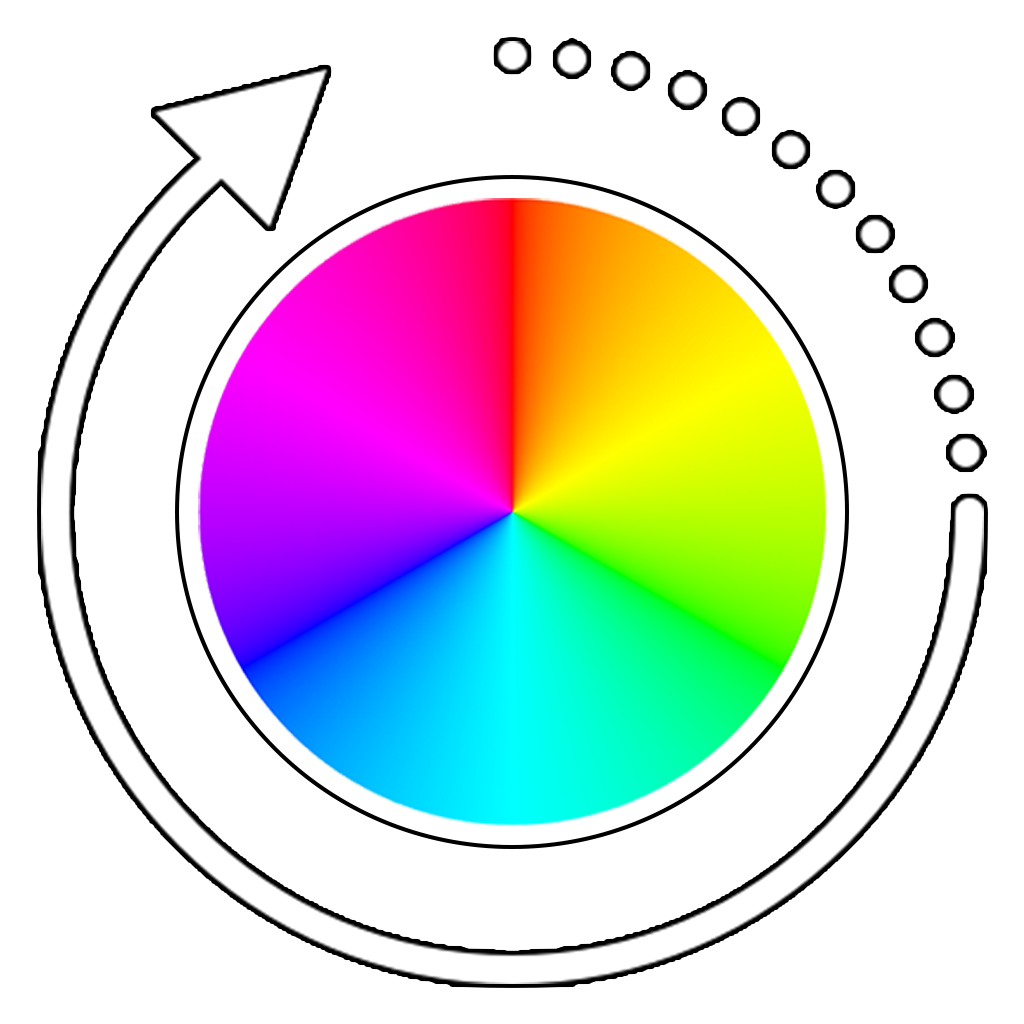
Determines how much to shift the base color around the Color Wheel. This is the main hue shifting slider.
This value is circular, starting at the Top-Middle of the Color Wheel (see below image) and rotating clockwise. It will have the same result at 0.0 and 1.0.
Hue Shift Speed
- Type
- Float
If set, will constantly shift the hue with time. A value of 1 will result in a full hue shift cycle every 20 seconds.
Hue Shift Audio Link
- Type
- Toggle
- Shown when
Audio Link is enabled
If enabled, allows the Hue Shift to be controlled with Audio Link chronotensity.
The settings in this section will only be visible when Audio Link is activated on the Material.
Band
- Type
- Dropdown
- Options
- BassLow MidHigh MidTrebleVolume
Which audio link frequency band to use for the hue shift motion.
Motion Type
- Type
- Dropdown
- Options
- Motion increases as intensity of band increases.Above but smooth.Motion moves back and forth as a function of intensity.Above but Smoooth.Fixed speed increase when the band is dark. Stationary when light.Above but Smooooth.Fixed speed increase when the band is dark. Fixed speed decrease when light.Above but Smoooooth.
Which chronotensity motion mode to use for the hue shift motion. These are somewhat self descriptive, but more information is available in the Audio Link Docs.
Motion Speed
- Type
- Float
How fast the audio link chronotensity should cycle the hue shift.
Color Grading
- Type
- Toggle
If enabled, uses a Gradation Map as reference to determine how the Color Adjust should appear with the defined Color Grading style.
Gradation Map
- Type
- Texture Slot
- Accepts
- Color texturesRGB On
Texture to use for the Color Grading.
Gradation Mask
- Type
- Dropdown
- Options
- RGBA
Gradation Strength
- Type
- Range
- Range
- 0to1
How strong should the Color Grading be applied to the Color Adjust.
Global Mask
Use this section to instead use a Global Mask for the Color Adjust Mask.
Hue
- Type
- Dropdown
- Options
- Off1R1G1B1A2R2G2B2A3R3G3B3A4R4G4B4A
Choice of which Global Mask channel to use for the Hue.
Saturation
- Type
- Dropdown
- Options
- Off1R1G1B1A2R2G2B2A3R3G3B3A4R4G4B4A
Choice of which Global Mask channel to use for the Saturation.
Brightness
- Type
- Dropdown
- Options
- Off1R1G1B1A2R2G2B2A3R3G3B3A4R4G4B4A
Choice of which Global Mask channel to use for the Brightness.
Gamma
- Type
- Dropdown
- Options
- Off1R1G1B1A2R2G2B2A3R3G3B3A4R4G4B4A
Choice of which Global Mask channel to use for the Gamma.