Lil Fur
The Lil Fur feature module allows simulation of fabrics and hairs, looking similar to how fur is simulated in animated films. This uses the exact same fur simulation technique known in LilToon's Fur shader.
To use Poiyomi + Lil Fur, select the shader version .poiyomi/Poiyomi Toon + Lil Fur or .poiyomi/Poiyomi Pro + Lil Fur. This exposes the Lil Fur category with the following settings shown below.
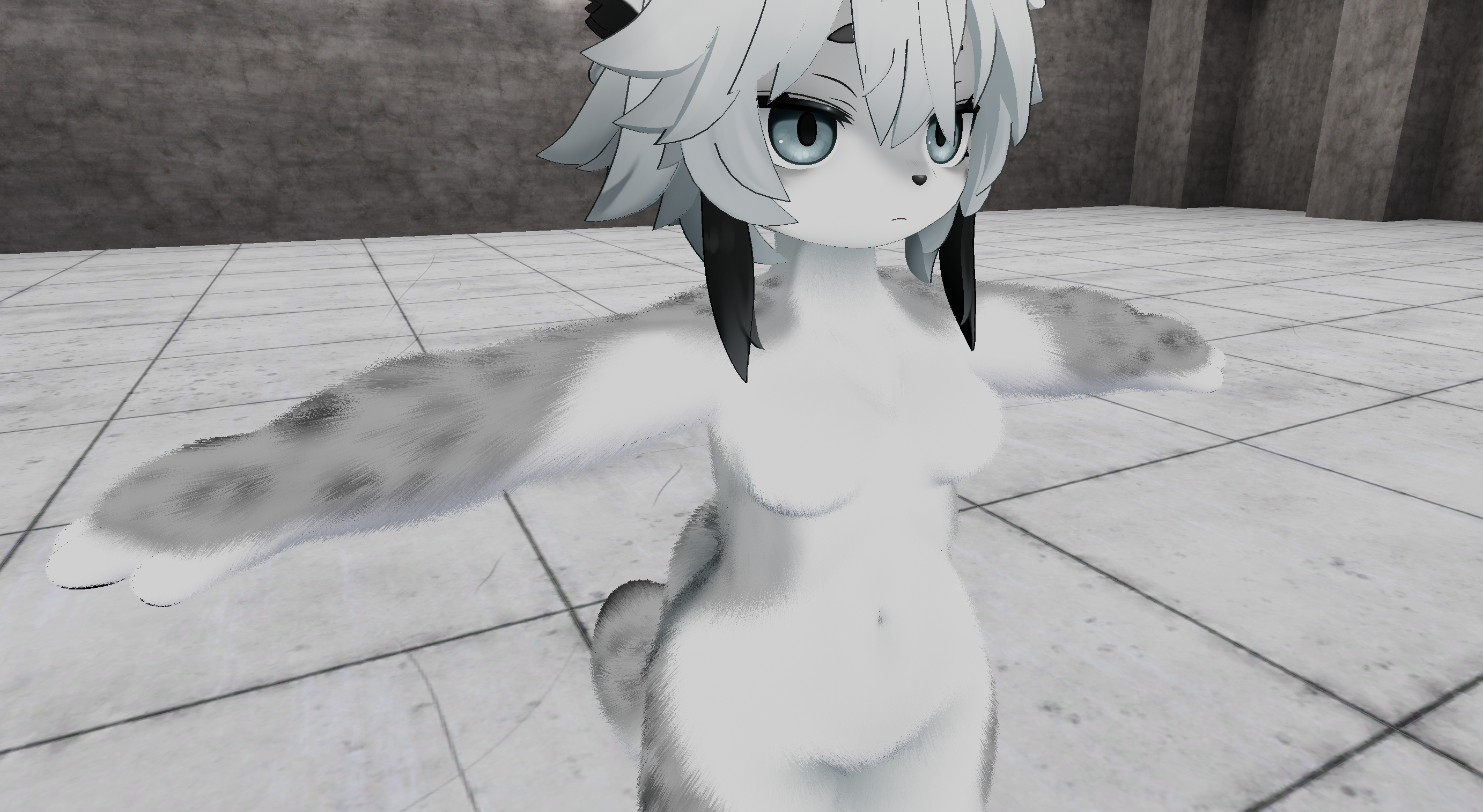
A rather extremely fluffy example on this Haishima Avatar, utilizing Poiyomi Toon + Lil Fur.
Fur Mode
- Type
- Dropdown
- Options
- CutoutTransparent
This chooses the rendering mode to use for Lil Fur. Settings will be applied to the module's Rendering properties.
For reference on the meanings of these modes, see Rendering Presets.
Fur Mask (RGBA)
- Type
- Texture Slot
- Accepts
- Data texturesRGB Off
Mask Texture in grayscale that determines the length of the Fur in various places on the UV space. Areas in darker grayscale will reduce the length based on the initial Length value set.
Determines and caps the length of the Fur.
Fur
Normal Map
- Type
- Texture Slot
- Accepts
- Normal mapsRGB Off
- Type
- Range
- Range
- 0to10
The Fur Normal Map determines the direction of the Fur strands.
Vector
- Type
- Float3
- Default
- X0Y0Z1
Sets the vectors on the direction of the Fur in X, Y, and Z.
Length
- Type
- Range
- Range
- 0to0.5
- Default
- 0.02
Sets the total length of the Fur hairs.
Length Mask
- Type
- Dropdown
- Options
- OffRGBA
When specified, the fur's length is determined from the selected channel specified from the Fur Mask.
Use Vertex Colors
- Type
- Toggle
If enabled, will use your mesh's Vertex Colors as the Fur Vector.
Gravity
- Type
- Range
- Range
- 0to1
Sets how much the Fur will face down from the force of gravity. The source of the Gravity is determined by the World's Z direction.
Randomize
- Type
- Float
Sets a degree on how much each direction of the fur is randomized.
Appearance
Noise
- Type
- Texture Slot
- Accepts
- Data texturesRGB Off
- Default
- _PoiyomiShaders/Textures/Fur/lil_noise_fur_2.png
Sets a noise texture to use in the fur generation. By default, this is set to a noise texture included in the shader package, courtesy of lilxyzw.
LilFur has no effect if this texture slot is empty. Make sure this is properly assigned to one!
Alpha Mask
- Type
- Dropdown
- Options
- OffRGBA
When specified, the fur is disabled on areas that are masked out in the specific color channel.
AO
- Type
- Range
- Range
- 0to1
Sets the degree of amount to apply shading to the fur. This may show an darkened underlying structure of the furs (triangular patterns) from certain angles when increased, creating a slightly realistic appearance.
Layers
Layer Count
- Type
- Integer
- Range
- 1to3
- Default
- 2
Amount of Fur that is produced. The higher the number, the denser and higher the load is.
Root Width
- Type
- Range
- Range
- 0to1
- Default
- 0
Sets the thickness of the root to increase density and make the main body less visible.
Width
- Type
- Range
- Range
- 0to1
- Default
- 0.15
Set's the width of the layer. Typically this should be of a small value. Higher values may yield more "blocky" results.
Wind
- Type
- Toggle
Enables an effect where Fur can be simulated with wind, determined by the settings exposed here.
Primary Wave
Direction
- Type
- Vector4
Sets the direction of the wind in X, Y, Z, and W axis.
Amplitude
- Type
- Range
- Range
- 0to2
Sets the intensity of how the fur should be simulated with wind, back to back. This can create an effect where the wind changes direction at frequent speed.
Speed
- Type
- Float
Sets the primary speed of the wind.
Frequency
- Type
- Float
Sets how frequent this effect is given to the fur.
Detail Wave
Direction
- Type
- Vector4
Sets the direction of the detailing wind in X, Y, Z, and W axis.
Amplitude
- Type
- Range
- Range
- 0to2
Sets the intensity of how the fur should be simulated with wind, back to back, on the secondary pass. This can create an effect where the wind changes direction at frequent speed.
Speed
- Type
- Float
Sets the secondary speed of the wind.
Frequency
- Type
- Float
Sets how frequent this secondary effect is given to the fur.
Rim Light
Color
- Type
- Color
Color of the Rim Lighting on the Fur.
Fresnel Power
- Type
- Range
- Range
- 0.01to50
Sets the Fresnel strength of the Rim Lighting on the Fur.
Anti Light
- Type
- Range
- Range
- 0to1
Sets the Anti Light factor on the Fur's Rim Lighting.
Lil Fur Rendering
These properties are automatically set based on the Fur Mode set. If you intend to modify these properties below, please do so with care.
Most, if not all properties that are listed here are the same descriptions as notated in Rendering. However, these settings are completely independent of the material's overall Rendering settings.
Cull
- Type
- Dropdown
- Options
- BackFrontOffdefault
Sets what faces should be culled.
ZTest
- Type
- Dropdown
- Options
- DisabledNeverLessEqualLessEqualdefaultGreaterNotEqualGreaterEqualAlways
Sets how the shader should test the depth buffer on the Fur. By default, the depth buffer is tested, and if the depth value is not less than or equal to the current value, the pixel is discarded.
Learn more at Unity's Documentation .
ZWrite
- Type
- Dropdown
- Options
- OffOn
Determines whether the shader should write to the depth buffer on the Fur. Its default depends on the Fur Mode: for Cutout, this is usually On, but for Transparent, this is usually Off.
Learn more at Unity's Documentation .
ZClip
- Type
- Toggle
- Default
- On
Enables or Disables the GPU's Depth Clip Mode on the Fur, which determines how the GPU handles fragments of the Shader that are outside of the Near and Far Planes.
Learn more at Unity's Documentation .
Offset Factor
- Type
- Float
- Default
- 0
Offset factor moves where a polygon is rendered in screen-space on the Fur. This doesn't change the visual appearance of the polygon, but can be used to specially modify the depth value of the polygon.
Learn more at Unity's Documentation .
Offset Units
- Type
- Float
- Default
- 0
A fixed value to move the polygon away from or toward the camera, while keeping it visually the same size on the Fur.
Learn more at Unity's Documentation .
Color
Color Mask
- Type
- Dropdown
- Options
- NoneRGBARGBRGBA
- Default
- Everything
Color Mask determines which color channels should be rendered on the Fur. By default, this is set to RGBA, which means that all colors are rendered. All permutations of color channels are available.
Learn more at Unity's Documentation .
Alpha To Mask
- Type
- Toggle
Sets the Alpha to affect the Mask of the Fur.
Lil Fur Blending
These configurations will also appear for the Fur's Forward Add pass as well.
RGB Blend Op
- Type
- Dropdown
- Options
- AddSubtractReverseSubtractMinMaxLogicalClearLogicalSetLogicalCopyLogicalCopyInvertedLogicalNoopLogicalInvertLogicalAndLogicalNandLogicalOrLogicalXorLogicalEquivalenceLogicalAndReverseLogicalAndInvertedLogicalOrReverseLogicalOrInvertedMultiplyScreenOverlayDarkenLightenColorDodgeColorBurnHardLightSoftLightDifferenceExclusionHSLHueHSLSaturationHSLColorHSLLuminosity
Which blend operator to use for the RGB channels on the Fur. This is almost always set to Add. See the Unity Documentation for more information.
RGB Source Blend
- Type
- Dropdown
- Options
- ZeroOneDstColorSrcColorOneMinusDstColorSrcAlphaOneMinusSrcColorDstAlphaOneMinusDstAlphaSrcAlphaSaturateOneMinusSrcAlpha
Which blend factors to use for the source on the Fur. See the Unity Documentation and Rendering Presets page for more information.
RGB Destination Blend
- Type
- Dropdown
- Options
- ZeroOneDstColorSrcColorOneMinusDstColorSrcAlphaOneMinusSrcColorDstAlphaOneMinusDstAlphaSrcAlphaSaturateOneMinusSrcAlpha
Which blend factors to use for the destination on the Fur. See the Unity Documentation and Rendering Presets page for more information.
Alpha Blending
These configurations will also appear for the Fur's Forward Add pass as well.
Alpha Blend Op
- Type
- Dropdown
- Options
- AddSubtractReverseSubtractMinMaxLogicalClearLogicalSetLogicalCopyLogicalCopyInvertedLogicalNoopLogicalInvertLogicalAndLogicalNandLogicalOrLogicalXorLogicalEquivalenceLogicalAndReverseLogicalAndInvertedLogicalOrReverseLogicalOrInvertedMultiplyScreenOverlayDarkenLightenColorDodgeColorBurnHardLightSoftLightDifferenceExclusionHSLHueHSLSaturationHSLColorHSLLuminosity
What blend op to use for the Alpha channel on the Fur. This is typically set by the Rendering Preset. See the Unity Documentation for more information.
Alpha Source Blend
- Type
- Dropdown
- Options
- ZeroOneDstColorSrcColorOneMinusDstColorSrcAlphaOneMinusSrcColorDstAlphaOneMinusDstAlphaSrcAlphaSaturateOneMinusSrcAlpha
Which blend factors to use for the Alpha source on the Fur. See the Unity Documentation and Rendering Presets page for more information.
Alpha Destination Blend
- Type
- Dropdown
- Options
- ZeroOneDstColorSrcColorOneMinusDstColorSrcAlphaOneMinusSrcColorDstAlphaOneMinusDstAlphaSrcAlphaSaturateOneMinusSrcAlpha
Which blend factors to use for the Alpha destination on the Fur. See the Unity Documentation and Rendering Presets page for more information.
Lil Fur Stencil
Most, if not all properties that are listed here are the same descriptions as notated in Stencil. However, these settings are completely independent of the material's overall Stencil settings.
Stencil Type
- Type
- Dropdown
- Options
- SimpleFront Face vs Back Face
This controls the type of Stencil to use, whether to keep it simple or to compare it to the Front Face against the Back Face of the mesh. For the most part, this is usually set to Simple.
Stencil Reference Value
- Type
- Integer
- Range
- 0to255
- Default
- 0
What reference value to use for the stencil test. This is the value that the stencil buffer is compared to or written from.
Stencil ReadMask Value
- Type
- Integer
- Range
- 0to255
- Default
- 255
Value used to mask what bits of the stencil buffer are read from. This is best thought of as a binary number, which is bitwise ANDed with the stencil buffer value to determine if the read tests true.
Stencil WriteMask Value
- Type
- Integer
- Range
- 0to255
- Default
- 255
Value used to mask what bits of the stencil buffer are read from. This is best thought of as a binary number, which is bitwise ANDed with the stencil buffer value to determine if the write tests true.
For a reference on stencil read/write masks, this thread provides some useful information.
Stencil Pass Op
- Type
- Dropdown
- Options
- KeepZeroReplaceIncrementDecrementInvertIncrementWrapDecrementWrap
Defines the operation that the GPU performs on the Stencil buffer when a pixel passes both the Stencil test and the Depth test.
Stencil Fail Op
- Type
- Dropdown
- Options
- KeepZeroReplaceIncrementDecrementInvertIncrementWrapDecrementWrap
Defines the operation that the GPU performs on the Stencil buffer when a pixel fails the Stencil test.
Stencil ZFail Op
- Type
- Dropdown
- Options
- KeepZeroReplaceIncrementDecrementInvertIncrementWrapDecrementWrap
Defines the operation that the GPU performs on the Stencil buffer when a pixel passes the Stencil test, but fails the Depth test.
Stencil Compare Function
- Type
- Dropdown
- Options
- DisabledNeverLessEqualLessEqualGreaterNotEqualGreaterEqualAlways
What comparison function to use for the stencil test. This is the function that is used to compare the reference value and the value in the stencil buffer. This can be used to create effects where the stencil buffer is used to determine if a pixel should be drawn or not.