Cubemap
The Cubemap section is similar to the Matcap section, but allows you to use a cubemap texture instead of a matcap texture. Cubemaps can be used to simulate reflections and other effects, and avoid some of the projection artifacts that occur with matcaps.
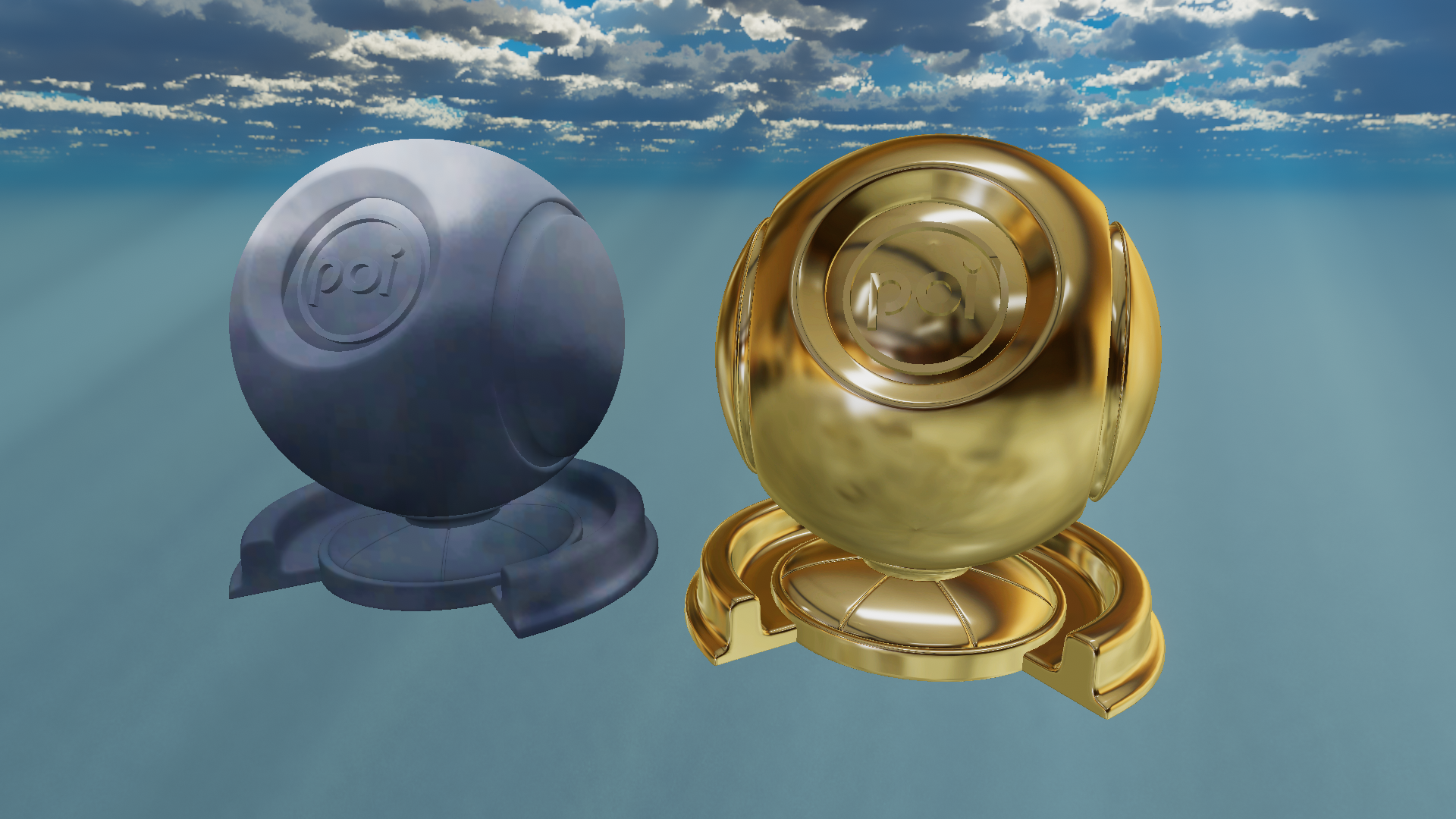
Demonstration of two different Cubemap UV Modes (Left: Skybox) (Right: Reflection).
UV Mode
- Type
- Dropdown
- Options
- SkyboxReflection
Determines which projection mode should be used for the cubemap UV.
Skybox
Skybox maps the cubemap based on the view direction. This creates a similar result to a Panosphere projection.
Reflection
Reflection maps the cubemap based on the reflection vectors. This is similar to using a fallback cubemap for Reflections & Specular.
Color
- Type
- Color
Tint color applied to the cubemap texture. This color is multiplied with the cubemap texture.
Cubemap
- Type
- Texture Slot
- Accepts
- CubemapsRGB On
Cubemap texture used. This must be in the cubemap format, which can be created from panoramic textures, or from 6 cube faces.
Blending
- Type
- Dropdown
- Options
- ReplaceMultiplyAdd
Defines how the cubemap effect should be blended with the base color.
Blend Alpha
- Type
- Range
- Range
- 0to1
How much to blend the Alpha of the Cubemap.
Brightness
- Type
- Range
- Range
- 0to5
Intensity of the Cubemap overall.
Emission Strength
- Type
- Range
- Range
- 0to20
How much emission to apply to the cubemap.
Smoothness
- Type
- Range
- Range
- 0to1
How much smoothing to apply of the Cubemap.
Normal to Use
- Type
- Dropdown
- Options
- PixelVertex
Which normal to use if custom normals are not selected. Pixel normals are normals affected by normal maps, Vertex normals use only the base normals of the mesh. This is useful for applying the cubemap to a mesh that has been deformed by a normal map, while keeping the cubemap smooth.
Masking
Mask
- Type
- Texture Slot
- Accepts
- Data texturesRGB Off
Mask that defines where to apply the cubemap effect. Black indicates where the cubemap should not be applied, and white indicates where it should be applied.
Hide in Shadow
- Type
- Range
- Range
- 0to1
How much to hide the cubemap effect in shadowed areas of the mesh.
Global Mask
- Type
- Dropdown
- Options
- Off1R1G1B1A2R2G2B2A3R3G3B3A4R4G4B4A
Select which Global Mask to use for the Cubemap mask.
Color Adjust
Color Space
- Type
- Dropdown
- Options
- OKLabdefaultHSV
Choice of Color Space to use for the Hue Shift. By default, it will be set to OKLab.
Learn about the difference of Color Spaces as documented here in Color Adjust.
Select or Shift
- Type
- Dropdown
- Options
- Hue SelectHue Shiftdefault
This dropdown allows you to select how the Color Adjustment should behave when the Hue Shift is used. By default, this will be set to Hue Shift.
Select or Shift Options
Hue Select: Directly applies the selected Hue as an override to the entire Cubemap.Hue Shift: Only tints the Cubemap based on the lerped value. This is the default behavior.
Hue Shift Speed
- Type
- Float
How much to constantly shift the Cubemap hue with time. A value of 1 will result in a full hue shift cycle every 20 seconds.
Hue Shift
- Type
- Range
- Range
- 0to1
- Default
- 0
How much to shift the Cubemap color around the hue circle.
This value is circular, and will have the same result at 0 and 1.
Brightness
- Type
- Range
- Range
- -1to2
- Default
- 0
Adjusts the brightness of the Cubemap.
This increases or decreases brightness directly on top of the existing color, without regard for it's hue or tone.
Contrast
- Type
- Range
- Range
- -1to10
- Default
- 1
Sets the contrast of rich colors on the Cubemap.
Saturation
- Type
- Range
- Range
- -1to10
- Default
- 0
Adjusts the saturation of the Cubemap.
A value of -1 will make the Cubemap color fully de-saturate (grayscale). A value of 0 will not alter the color at all. A value greater than 0 will increase the saturation.
This is implemented as a lerp between the base color and a grayscale version of the base color.