Reflections & Specular
The Reflections & Specular section adds physically-based reflection and specular highlights to a material. Reflections & Specular allows the user to create metallic-like surfaces such as aluminum, copper, chromium, and steel, with varying smoothness and intensity. This is the core component of a Physically-Based Rendering (PBR) material.
To learn more about the principles of PBR shading, guides are available from Adobe Substance and Google Filament.
Reflections and Specular are heavily influenced by the lighting setup of the scene. For these features to look correct, the scene should have well-defined lighting and reflection probes.

Example of Reflections & Specular used on two Material Spheres (Left: Color Only) (Right: with Copper-like Textures).
Metallic
- Type
- Range
- Range
- 0to1
How metallic the material should be. Metallic materials are usually used for (as would be expected) metals. The defining feature of metallic surfaces is that reflections are tinted with the color of the material. For non-metallic materials, the reflections are not tinted.
This value is multiplied with the value of the Metallic Map. If no metallic map is defined, this setting is used directly.
This setting is equivalent to the Metallic setting in the Unity Standard shader.
Smoothness
- Type
- Range
- Range
- 0to1
How smooth the material should be. Smoothness is a value that controls how diffuse, or blurred, highlights and reflections are. A value of 0.0 means that the material is completely diffuse, meaning reflections will be highly blurred, and specular reflections will be large and not very bright. A value of 1.0 means that the material is completely smooth, and will have very small and concentrated specular.
Smoothness is the opposite of Roughness, and they can be converted by inverting the value - 0.2 roughness is 1.0 - 0.2 = 0.8 smoothness, and 0.7 smoothness would be 1.0 - 0.7 = 0.3 roughness.
This value is multiplied with the value of the Smoothness Map. If no smoothness map is defined, this setting is used directly.
This setting is equivalent to the Smoothness setting in the Unity Standard shader.
Reflection Tint
- Type
- Color
A tint color applied to the reflections. This is multiplied with the material's reflections, and is generally used to create a non-physically based stylized effect.
Specular Tint
- Type
- Color
A tint color applied to the specular. This is multiplied with the material's specular highlights, and is generally used to create a non-physically based stylized effect.
Packed Maps
- Type
- Texture Slot
- Accepts
- Data texturesRGB Off
The map texture defines multiple settings of the Reflections and Specular across different parts of the material. These maps are packed into a single texture, which increases performance and reduces memory usage.
This texture can be exported from programs like Adobe Substance Painter as a pre-packed map, or packed using the inline packing tool included with the Poiyomi Shaders package.
The inline Thry Editor Texture Packer can be used by expanding the Maps texture. Each channel will have its own texture slot, and the channel to be used can be selected. If no texture is defined, a fallback value can be selected for that channel; generally, this fallback should be kept at 1.0, allowing the slider to control this value. Note that all textures will be combined to a single texture with certain default settings; be sure to check this texture's import settings for options like resolution and texture format once it has been saved.
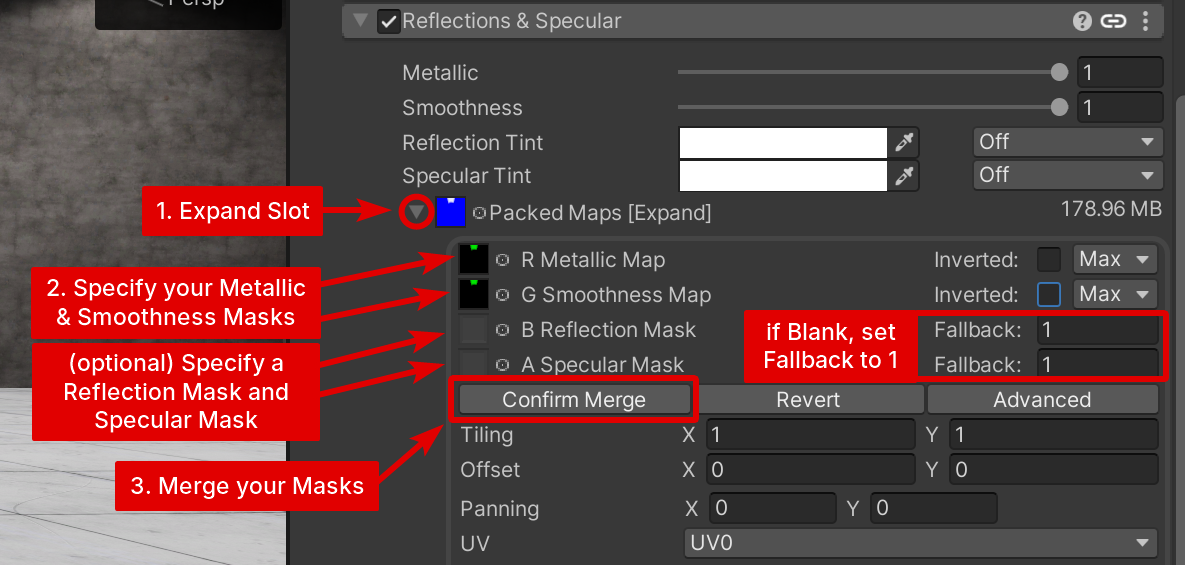
Packed Maps Slots
R Metallic Map
- Type
- Texture Slot
- Accepts
- Data texturesRGB Off
The metallic map defines where the material should be metallic, and where it should be non-metallic (dielectric). This should generally be black or white, with few situations requiring in-between values.
G Smoothness Map
- Type
- Texture Slot
- Accepts
- Data texturesRGB Off
The Smoothness map defines where the material should be smoother, and where it should be rougher. This value can vary smoothly between 0.0 and 1.0 according to variations and different parts of a material.
If you use a Roughness Map as the G Smoothness Map, we urge you to checkmark Inverted in the Packer. This is so that it matches the Unity PBR Pipeline.
B Reflection Mask
- Type
- Texture Slot
- Accepts
- Data texturesRGB Off
The reflection mask defines where reflections should be allowed, and where they should be disabled. This is mostly useful for stylized models, and for purely physically-based shading, this channel should be left at 1.0.
A Specular Mask
- Type
- Texture Slot
- Accepts
- Data texturesRGB Off
The specular mask defines where specular highlights should be allowed, and where they should be disabled. This is mostly useful for stylized models, and for purely physically-based shading, this channel should be left at 1.0.
Stochastic Sampling
- Type
- Toggle
Enables Stochastic Sampling in your Packed Maps.
Channel Overrides
Use these overrides if you are using an alternative workflow in your Metallic Smoothness Maps.
Metallic Channel
- Type
- Dropdown
- Options
- RdefaultGBAWhite
Channel Override for the Metallic Map.
Smoothness Channel
- Type
- Dropdown
- Options
- RGdefaultBAWhite
Channel Override for the Smoothness Map.
Reflection Mask Channel
- Type
- Dropdown
- Options
- RGBdefaultAWhite
Channel Override for the Reflection Mask.
Specular Mask Channel
- Type
- Dropdown
- Options
- RGBAdefaultWhite
Channel Override for the Specular Mask.
Invert Channel Overrides
Invert Metallic
- Type
- Toggle
Flips the Metallic Channel to the opposite of it's value.
Invert Smoothness
- Type
- Toggle
Flips the Smoothness Channel to the opposite of it's value.
Invert Reflection Mask
- Type
- Toggle
Flips the Reflection Mask to the opposite of it's value.
Invert Specular Mask
- Type
- Toggle
Flips the Specular Mask to the opposite of it's value.
Reflection Visibility
- Type
- Range
- Range
- 0to1
- Default
- 1
How strong reflections should be across the material. These are blended with the base color of the material, and if a reflection mask is used, this value is multiplied with the reflection mask.
Specular Visibility
- Type
- Range
- Range
- 0to5
- Default
- 1
How strong specular highlights should be across the material. These are blended with the base color of the material, and if a specular mask is used, this value is multiplied with the specular mask.
Fresnel Strength
- Type
- Range
- Range
- 0to1
- Default
- 0.5
How strong the low-angle reflective rim should affect the material. This is similar to Unity Standard's fresnel effect by default, but allows further control of how intense it should be.
Exposure Occlusion
- Type
- Range
- Range
- 0to1
- Default
- 0
Controls how much to darken reflections for areas that are not receiving as much lighting, such as in shadowed areas. This matches similar behavior to Filamented-based shaders.
This effect typically looks best when seen in VRC Light Volumes rather than Light Probes.
Fallback Cubemap
- Type
- Texture Slot
- Accepts
- CubemapsRGB On
Fallback Cubemap to use if a Reflection Probe is not found in the World. This is used to provide a fallback reflection for maps, or areas of maps, that don't have a reflection probe defined.
Force Fallback
- Type
- Toggle
Forces the material to always use the above specified Fallback Cubemap in Reflections & Specular. This is useful for forcing a specific reflection for stylized models.
Anisotropics
- Type
- Toggle
Enables Anisotropy effects in Reflections & Specular, which can emulate an effect similar to silk and/or polyester.
Using Anisotropics in Reflections & Specular can be useful for matching your PBR textures and settings, especially when creating stylized hair.
Anisotropy Map
- Type
- Texture Slot
- Accepts
- Data texturesRGB Off
Texture Map for the angle of the Anisotropic effects. Gets re-ranged to -1 to 1. In the texture map .5 is 0 or no Anisotropic effect.
Anisotropy
- Type
- Range
- Range
- -1to1
Adjusts the angle of the Anisotropic effect. Added with the texture map and clamped.
Reflection Stretch
- Type
- Range
- Range
- 1to5
Adjusts the intensity of the Anisotropic reflections.
Roughness Anisotropy
- Type
- Range
- Range
- 0to1
Adjusts how dependent the Anisotropic effect is on the roughness of the material.
2nd Specular
- Type
- Toggle
2nd Specular enables an additional specular reflection. This can be used to create a multi-layered specular effect, with a different smoothness for each layer.
Strength
- Type
- Range
- Range
- 0to1
Strength of the 2nd specular layer. This value scales the same way as Specular Strength.
Smoothness
- Type
- Range
- Range
- 0to1
Smoothness of the 2nd specular layer. This value scales the same way as Smoothness.
Split Mask Sampling
- Type
- Toggle
Split Mask Sampling defines whether to differentiate the Metallic/Smoothness components of the packed map texture from the Reflection/Specular mask components. This is useful when using highly tiled or panned metallic and smoothness maps, while keeping the masks un-tiled, or on a separate UV map.
Tiling/Offset
- Type
- Vector4
Scale and Tiling selection for the Reflection and Specular masks, if Split Mask Sampling is enabled.
The first two values (X and Y) set the tiling for the mask channels. The second two values (Z and W) set the offset for the mask channels.
UV
- Type
- Dropdown
- Options
- UV0UV1UV2UV3PanosphereWorld PosLocal PosPolar UVDistorted UVMatcapScreen Space
UV selection for the Reflection and Specular masks, if Split Mask Sampling is enabled.
Panning
- Type
- Vector2
X/Y Panning for the Reflection and Specular masks, if Split Mask Sampling is enabled.
GSAA & Advanced Controls
Lit Fallback
- Type
- Toggle
- Default
- On
Lit Fallback applies the lighting of the map to the fallback cubemap. This allows the fallback cubemap to fit more closely with the environmental lighting, so it's recommended to keep this property enabled.
Ignore Casted Shadows
- Type
- Toggle
- Default
- Off
If enabled, ignores shadows casted from the mesh in Reflections & Specular.
Pixel Normal Mix
- Type
- Range
- Range
- 0to1
Adjusts the Normal Mix of Reflections & Specular.
GSAA
- Type
- Toggle
- Default
- On
GSAA (Geometric Specular Anti-Aliasing) is a technique that improves the quality of specular reflections. It uses the geometry of the model to modify the specular reflections in order to reduce Specular Aliasing, which is a visible artifact that occurs at high smoothness levels, especially with highly detailed models or normal maps.
In general, GSAA should be left on.
GSAA Variance
- Type
- Range
- Range
- 0to1
- Default
- 0.15
GSAA Variance is used to scale the per-pixel geometric change of the model in order to determine how much GSAA should be applied.
The default 0.15 value works well to balance the quality of the specular reflections with the quality of the specular anti-aliasing.
GSAA Threshold
- Type
- Range
- Range
- 0to1
- Default
- 0.1
GSAA Threshold is used to determine the point at which GSAA should be applied.
The default 0.1 value works well to balance the quality of the specular reflections with the quality of the specular anti-aliasing.
Global Mask
Metallic
- Type
- Dropdown
- Options
- Off1R1G1B1A2R2G2B2A3R3G3B3A4R4G4B4A
Select which Global Mask to act as the Metallic Strength.
Smoothness
- Type
- Dropdown
- Options
- Off1R1G1B1A2R2G2B2A3R3G3B3A4R4G4B4A
Select which Global Mask to act as the Smoothness Strength.
Reflection Strength
- Type
- Dropdown
- Options
- Off1R1G1B1A2R2G2B2A3R3G3B3A4R4G4B4A
Select which Global Mask to act as the Reflection Strength.
Specular Strength
- Type
- Dropdown
- Options
- Off1R1G1B1A2R2G2B2A3R3G3B3A4R4G4B4A
Select which Global Mask to act as the Specular Strength.