Rim Lighting
Rim Lighting can be used to add a highlight or glow around the edges (or center) of a material. It uses the angle between your view and the normal of the surface to define the intensity of the effect.
Rim Lighting is sometimes referred to in conjunction with or as Fresnel, in reference to the Fresnel Effect.
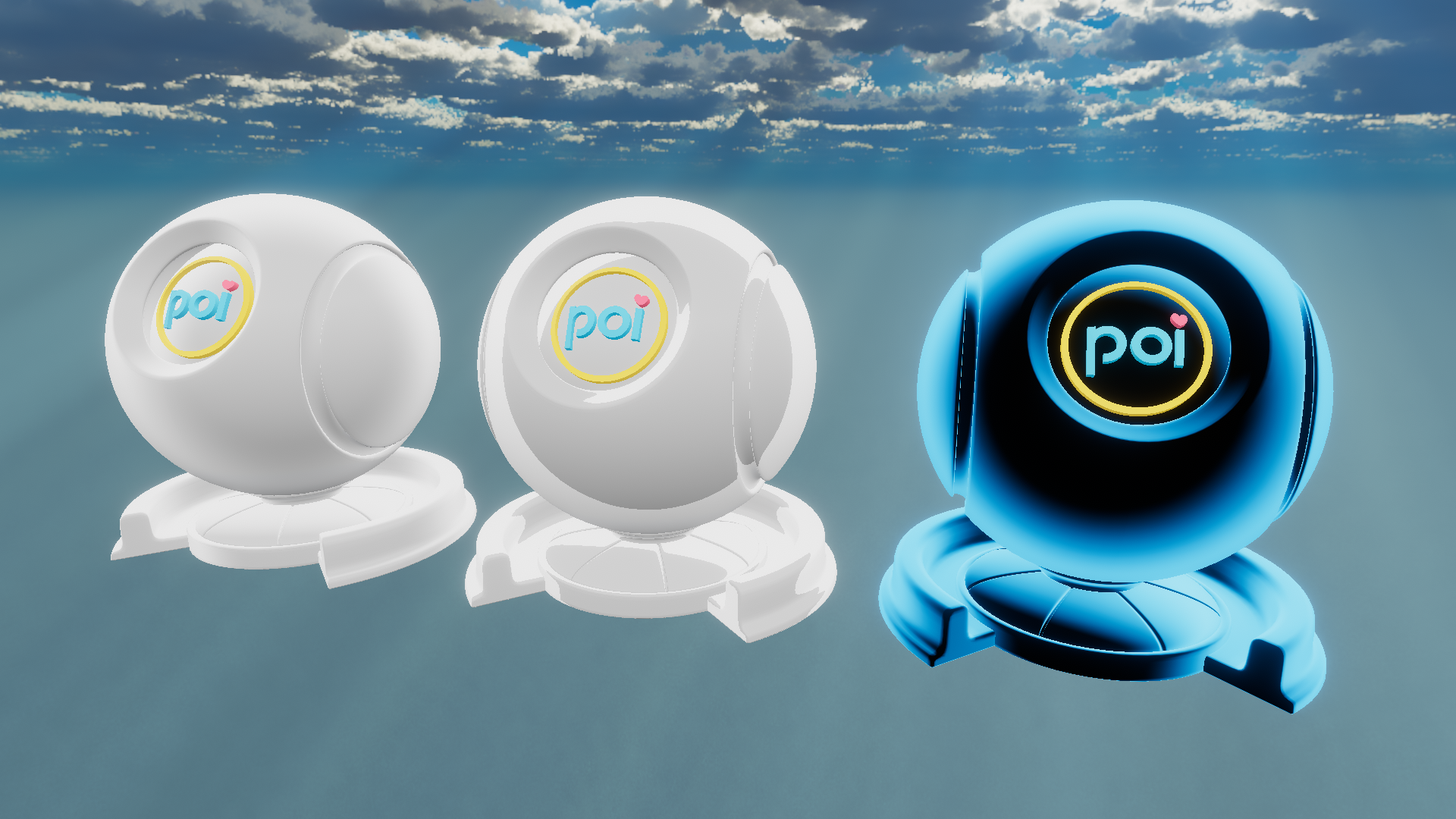
Demonstration of 3 different Rim Lighting effects with low sharpness (left), high sharpness (middle), and colored rim lighting (right).
Style
- Type
- Dropdown
- Options
- PoiyomidefaultUTS2LilToon
Choose the style of Rim Lighting that you wish to use.
To see relevant settings, select which option you are using:
- Poiyomi
- UTS2
- LilToon
Poiyomi
Default Rim Lighting style, designed by Poiyomi.
Mask & Bias
- Type
- Texture Slot
- Accepts
- Data texturesRGB Off
Masks the area where Rim Lighting should only appear in, as well as the bias. It should generally be black and white, as only its value (specifically the red channel value) will be used, not the color.
When expanded, the Rim Mask texture has options for Tiling and Offset. The assigned UV Map and the Panning of the Rim Mask can be adjusted.
Bias Intensity
- Type
- Range
- Range
- 0to1
Bias of the Mask Intensity.
Color & Blending
Demonstration of the Rim Lighting Color & Blending options.
Rim Texture
- Type
- Texture Slot
- Accepts
- Color texturesRGB On
A texture overlaid on the mesh defining the color of the rim lighting.
When expanded, the Rim Texture has options for Tiling and Offset. The assigned UV Map and the Panning of the Rim Texture can be adjusted.
Color
- Type
- Color
The Color of your Rim Lighting. Blended with the base color.
This color is blended multiplicative with the Rim Texture, if defined.
Blend Mode
- Type
- Dropdown
- Options
- AddReplaceMultiplyMixedScreen
Choice of how the Rim Lighting will blend with the base texture.
Blend Alpha
- Type
- Range
- Range
- 0to1
Controls the Alpha visibility of the Rim Lighting. 0 is invisible, while 1 is fully visible.
Mix Base Color
- Type
- Range
- Range
- 0to1
Controls how much the Rim Lighting's Color will blend with the Base Color.
Brightness
- Type
- Range
- Range
- 0to10
Controls how bright the Rim Lighting will be overall.
Emission
- Type
- Range
- Range
- 0to20
Controls the emission value of the rim lighting color. Emission emulates a part of a material that produces light, and adds directly on top of the base color.
Total emission values above 1 will generally cause glow in worlds with bloom.
Shape Controls
Demonstration of the Rim Lighting Shape Controls.
Width
- Type
- Range
- Range
- 0to1
Controls the width of the Rim Lighting. Affects how far from the edge (or center) the rim extends.
Blur
- Type
- Range
- Range
- 0to1
Controls the amount of Blur to apply the edge of the Rim Lighting. The higher the value, the higher the Blurriness of the edge.
This value was previously Sharpness in 9.3 versions and older, but was replaced because it was way more limited than it's intended functionality.
Rim Power
- Type
- Range
- Range
- 0to10
Controls how intense the Rim Lighting has an effect.
Linear
- Type
- Toggle
Switches to more linear blending on the Rim Lighting.
Normal Strength
- Type
- Range
- Range
- 0to1
Controls how the Rim Lighting will blend with your Normals. A value of 0 ignores your Normals, while a value of 1 will fully blend within your Normals.
Invert Rim
- Type
- Toggle
Inverts the Rim Lighting direction. When unchecked, rim lighting goes from "outside-in" (facing away from viewer has maximum intensity). When checked, rim lighting goes from "inside-out" (facing toward viewer has maximum intensity).
Light Direction Mask
- Type
- Toggle
Enables the ability to mask the Rim Lighting to a Lighting Direction Mask, whether that would be Custom or to use the Shadow Map.
Light Falloff Type
- Type
- Dropdown
- Options
- Shadow MapdefaultCustom
Choice of the Light Falloff Map it's going to use as a Mask.
Invert Shadow Mask
- Type
- Toggle
Inverts the values of the Shadow Mask
Shadow Mask Strength
- Type
- Range
- Range
- 0to1
Controls the intensity of that Mask.
Shrink In Shadow
- Type
- Range
- Range
- 0to1
Lowers the size of the Rim Light Width in the Masked area.
Hue Shift
- Type
- Toggle
Enables the Hue Shift feature in Rim Lighting.
Color Space
- Type
- Dropdown
- Options
- OKLabdefaultHSV
Choice of Color Space to use for the Hue Shift. By default, it will be set to OKLab.
Learn about the difference of Color Spaces as documented here in Color Adjust.
Select or Shift
- Type
- Dropdown
- Options
- Hue SelectHue Shiftdefault
This dropdown allows you to select how the Color Adjustment should behave when the Hue Shift is used. By default, this will be set to Hue Shift.Select or Shift Options
Hue Select: Directly applies the selected Hue as an override to the entire Rim Lighting color.Hue Shift: Only tints the Rim Lighting based on the lerped value. This is the default behavior.
Shift Speed
- Type
- Float
Sets the speed at which the rim color's hue value is shifted. At a value of 1, it will go through a complete cycle of the color wheel once every 20 seconds.
Hue Shift
- Type
- Range
- Range
- 0to1
A fixed value by which to hue shift the material. At values of 0 and 1, there will be no change to the material. In between, the hue will shift through the color wheel.
Alpha & Global Masking
Apply to Alpha
- Type
- Dropdown
- Options
- OffAddMultiply
Choice to apply the Rim Lighting to the Material Alpha.
Apply to Alpha Blend
- Type
- Range
- Range
- 0to1
Controls how much to Apply the Rim to your Alpha.
Global Mask
- Type
- Dropdown
- Options
- Off1R1G1B1A2R2G2B2A3R3G3B3A4R4G4B4A
Choose to use a Global Mask to constrain the Rim Lighting to the specified Mask instead. Overrides Mask & Bias.
Apply to Global Mask
- Type
- Dropdown
- Options
- Off1R1G1B1A2R2G2B2A3R3G3B3A4R4G4B4A
Allows you to add the currently set Rim Lighting setup to be applied to an existing Global Mask of your choice.
Audio Link
The settings in this section will only be visible when Audio Link is activated on the Material.
Demonstration of the Audio Link Controls on the Bass Band for Rim Lighting.
Width Add Band
- Type
- Dropdown
- Options
- BassLow MidHigh MidTrebleVolume
Which Band to use for the Width.
Width Add
- Type
- Float2
How much to add to or subtract from the Rim Lighting Width with Audio.
| Modifier | Function |
|---|---|
| Min | Amount changed to Rim Width with No Audio in Width Add Band |
| Max | Amount changed to Rim Width with Max Audio in Width Add Band |
Emission Add Band
- Type
- Dropdown
- Options
- BassLow MidHigh MidTrebleVolume
Which Band to use for the Rim Emission.
Emission Add
- Type
- Float2
How much to add to or subtract from the Rim Lighting Emission with Audio.
| Modifier | Function |
|---|---|
| Min | Amount changed to Rim Emission with No Audio in Emission Add Band |
| Max | Amount changed to Rim Emission with Max Audio in Emission Add Band |
Brightness Band
- Type
- Dropdown
- Options
- BassLow MidHigh MidTrebleVolume
Which Band to use for the Rim Brightness.
Brightness Add
- Type
- Float2
How much to add to or subtract from the Rim Lighting Brightness with Audio.
| Modifier | Function |
|---|---|
| Min | Amount changed to Rim Brightness with No Audio in Brightness Band |
| Max | Amount changed to Rim Brightness with Max Audio in Brightness Band |
Color Override
- Type
- Toggle
Enables overriding the Color using Audio Link.
Color
- Type
- Color
Sets a Color to use as the Color Override.
Theme Color
- Type
- Dropdown
- Options
- Theme Color 0Theme Color 1Theme Color 2Theme Color 3ColorChord 0ColorChord 1ColorChord 2ColorChord 3AL Theme 0AL Theme 1AL Theme 2AL Theme 3
Option to set a Theme Color to use as the Color Override instead.
Color Override Band
- Type
- Dropdown
- Options
- BassLow MidHigh MidTrebleVolume
Which Band to use to trigger the Color Override.
Color Override Ramp
- Type
- Vector Curve
Vector ramp to determine how Color Override is used.
UTS2
The Rim Lighting style known from the now-deprecated Unity-chan Toon Shader 2.
Set_RimLightMask
- Type
- Texture Slot
- Accepts
- Data texturesRGB Off
Masks the area where Rim Lighting should only appear in, as well as the bias. It should generally be black and white, as only its value (specifically the red channel value) will be used, not the color.
When expanded, the Rim Mask texture has options for Tiling and Offset. The assigned UV Map and the Panning of the Rim Mask can be adjusted.
Color & Blending
Color
- Type
- Color
The Color of your Rim Lighting. Blended with the base color.
This color is blended multiplicative with the Rim Texture, if defined.
Tweak_RimLightMaskLevel
- Type
- Range
- Range
- -1to1
Tweaks the range level of the Rim Light Mask.
Mix Light Color
- Type
- Range
- Range
- 0to1
How much to mix the Light Color for the Rim Lighting.
Shape Controls
Normal Strength
- Type
- Range
- Range
- 0to1
Controls how the Rim Lighting will blend with your Normals. A value of 0 ignores your Normals, while a value of 1 will fully blend within your Normals.
Rim Power
- Type
- Range
- Range
- 0to10
Controls how intense the Rim Lighting has an effect.
Inside Mask
- Type
- Range
- Range
- 0.0001to1
Controls the shape from the inside mask.
Feather Off
- Type
- Toggle
Turns off the Feather effect in the rim shape.
Light Direction Mask
- Type
- Toggle
Enables the Light Direction Mask in UTS2 rim lighting.
Light Dir Mask Level
- Type
- Range
- Range
- 0to0.5
How much level to apply the mask to the Light Direction.
Antipodean(Ap) Rim
- Type
- Toggle
Enables Antipodean(Ap) Rim in UTS2 rim lighting.
Ap Light Color Mix
- Type
- Range
- Range
- 0to1
- Shown when
Antipodean(Ap) Rim is enabled
How much to mix the Antipodean Light Color.
Ap Color
- Type
- Color
- Shown when
Antipodean(Ap) Rim is enabled
Set the Color of the Antipodean Rim.
Ap Power
- Type
- Range
- Range
- 0to1
- Shown when
Antipodean(Ap) Rim is enabled
Sets the amount of intensity of the Antipodean Rim.
Ap Feather Off
- Type
- Toggle
- Shown when
Antipodean(Ap) Rim is enabled
Turns off the feather from the Antipodean Rim.
Hue Shift
- Type
- Toggle
Enables the Hue Shift feature in Rim Lighting.
Color Space
- Type
- Dropdown
- Options
- OKLabdefaultHSV
Choice of Color Space to use for the Hue Shift. By default, it will be set to OKLab.
Learn about the difference of Color Spaces as documented here in Color Adjust.
Select or Shift
- Type
- Dropdown
- Options
- Hue SelectHue Shiftdefault
This dropdown allows you to select how the Color Adjustment should behave when the Hue Shift is used. By default, this will be set to Hue Shift.Select or Shift Options
Hue Select: Directly applies the selected Hue as an override to the entire Rim Lighting color.Hue Shift: Only tints the Rim Lighting based on the lerped value. This is the default behavior.
Shift Speed
- Type
- Float
Sets the speed at which the rim color's hue value is shifted. At a value of 1, it will go through a complete cycle of the color wheel once every 20 seconds.
Hue Shift
- Type
- Range
- Range
- 0to1
A fixed value by which to hue shift the material. At values of 0 and 1, there will be no change to the material. In between, the hue will shift through the color wheel.
Alpha & Global Masking
Apply to Alpha
- Type
- Dropdown
- Options
- OffAddMultiply
Choice to apply the Rim Lighting to the Material Alpha.
Apply to Alpha Blend
- Type
- Range
- Range
- 0to1
Controls how much to Apply the Rim to your Alpha.
Global Mask
- Type
- Dropdown
- Options
- Off1R1G1B1A2R2G2B2A3R3G3B3A4R4G4B4A
Choose to use a Global Mask to constrain the Rim Lighting to the specified Mask instead. Overrides Mask & Bias.
LilToon
Matches the same Rim Lighting style used in LilToon shader.
Rim Color
- Type
- HDR Color
- Default
- #A8807A
The Color of your Rim Lighting. Blended with the base color.
This color is blended multiplicative with the Rim Texture, if defined.
Color / Mask
- Type
- Texture Slot
- Accepts
- Color texturesRGB On
Combined Color and Mask texture to determine the Rim Color and Mask.
When expanded, the texture has options for Tiling and Offset. The assigned UV Map and the Panning of the Rim Mask can be adjusted.
Main Color Blend
- Type
- Range
- Range
- 0to1
How much to blend the Main Color for the Rim Lighting.
Normal Strength
- Type
- Range
- Range
- 0to1
Controls how the Rim Lighting will blend with your Normals. A value of 0 ignores your Normals, while a value of 1 will fully blend within your Normals.
Border
- Type
- Range
- Range
- 0to1
Controls the border width of the Rim Lighting. Affects how far from the edge (or center) the rim extends.
Blur
- Type
- Range
- Range
- 0to1
Controls the amount of Blur to apply the edge of the Rim Lighting. The higher the value, the higher the Blurriness of the edge.
This value was previously Sharpness in 9.3 versions and older, but was replaced because it was way more limited than it's intended functionality.
Fresnel Power
- Type
- Range
- Range
- 0to50
Controls how intense the fresnel portion of the Rim Lighting has an effect.
Enable Lighting
- Type
- Range
- Range
- 0to1
When set greater than 0, determines how much Lighting to be influenced.
Shadow Mask
- Type
- Range
- Range
- 0to1
Sets the shadow masking of the rim lighting.
Backface Mask
- Type
- Toggle
If enabled, use the mask on the backface.
VR Parallax Strength
- Type
- Range
- Range
- 0to1
Sets how strong the rim lighting should parallax in relation to the FoV.
Blend Mode
- Type
- Dropdown
- Options
- ReplaceAddScreenMultiply
Choice of how the Rim Lighting will blend with the base texture.
Light Direction
Light Direction Strength
- Type
- Range
- Range
- 0to1
Strength of the Light Direction for the rim lighting.
Direction Light Width
- Type
- Range
- Range
- -1to1
Width modifier of the Light Direction rim.
Indirection Light Width
- Type
- Range
- Range
- -1to1
Width modifier of the indirect Light Direction rim.
Indirection Color
- Type
- HDR Color
Color of the indirect Light Direction rim.
Indirection Border
- Type
- Range
- Range
- 0to1
Border of the indirect Light Direction rim.
Indirection Blur
- Type
- Range
- Range
- 0to1
Blur amount of the indirect Light Direction rim.
Hue Shift
- Type
- Toggle
Enables the Hue Shift feature in Rim Lighting.
Color Space
- Type
- Dropdown
- Options
- OKLabdefaultHSV
Choice of Color Space to use for the Hue Shift. By default, it will be set to OKLab.
Learn about the difference of Color Spaces as documented here in Color Adjust.
Select or Shift
- Type
- Dropdown
- Options
- Hue SelectHue Shiftdefault
This dropdown allows you to select how the Color Adjustment should behave when the Hue Shift is used. By default, this will be set to Hue Shift.Select or Shift Options
Hue Select: Directly applies the selected Hue as an override to the entire Rim Lighting color.Hue Shift: Only tints the Rim Lighting based on the lerped value. This is the default behavior.
Shift Speed
- Type
- Float
Sets the speed at which the rim color's hue value is shifted. At a value of 1, it will go through a complete cycle of the color wheel once every 20 seconds.
Hue Shift
- Type
- Range
- Range
- 0to1
A fixed value by which to hue shift the material. At values of 0 and 1, there will be no change to the material. In between, the hue will shift through the color wheel.
Alpha & Global Masking
Apply to Alpha
- Type
- Dropdown
- Options
- OffAddMultiply
Choice to apply the Rim Lighting to the Material Alpha.
Apply to Alpha Blend
- Type
- Range
- Range
- 0to1
Controls how much to Apply the Rim to your Alpha.
Global Mask
- Type
- Dropdown
- Options
- Off1R1G1B1A2R2G2B2A3R3G3B3A4R4G4B4A
Choose to use a Global Mask to constrain the Rim Lighting to the specified Mask instead. Overrides Mask & Bias.