Internal Parallax
Internal Parallax creates an illusion of layers going inside the Mesh. Similar to an "infinite mirror" effect, it can be used to create stylized parallax effects.
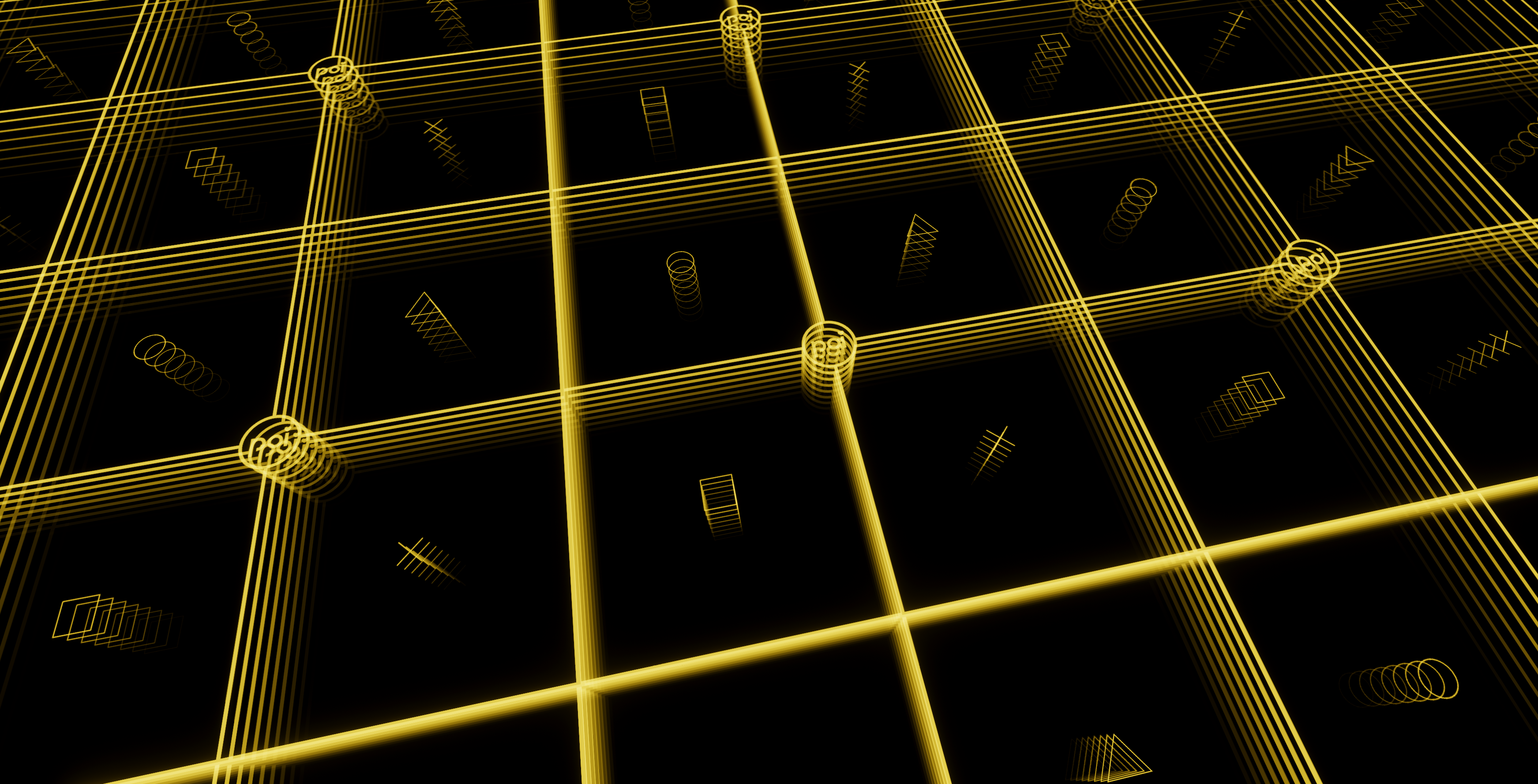
Example of the parallax iterations possible using an Internal Map set to be tiled.
Parallax Mode
- Type
- Dropdown
- Options
- BasicHeightMap
Determines the Parallax Mode to use for the Internal Parallax.
Basic
Basic Parallax as determined by the Map.
HeightMap
Uses the Height Map technique to create the Internal Parallax.
Internal Map
- Type
- Texture Slot
- Accepts
- Color texturesRGB On
Color Map to use for the Internal Map. RGB for Color, and A channel for the Height.
For best results, use only two colors for your Internal Mapping. Those two colors should be used by the Min Depth Color and Max Depth Color.
Mask
- Type
- Texture Slot
- Accepts
- Data texturesRGB Off
Clamps the Internal Parallax to only affect a specified area as determined by the Mask.
Layer Controls
Parallax Internal Iterations
- Type
- Range
- Range
- 1to50
How many iterations should there be for the Parallax. Higher numbers yield more iterations.
Min Iterations
- Type
- Range
- Range
- 1to50
Clamps the minimum amount of iterations to a specific value. Typically this should be left at 1.0.
Distance Falloff
- Type
- Vector2
Sets the nearest and farthest falloff distance of the Internal Parallax iterations.
Min Depth
- Type
- Float
The Minimum Depth for the Parallax, or the beginning of the iteration. Normally this is set to 0.
Max Depth
- Type
- Float
The Maximum Depth for the Parallax, or the ending of the iteration. In a literal sense, this determines the distance of the "infinite mirror" effect.
Layer Colors
Min Depth Brightness
- Type
- Range
- Range
- 0to5
Minimum Brightness intensity of the Minimum Depth Color.
Max Depth Brightness
- Type
- Range
- Range
- 0to5
Maximum Brightness intensity of the Maximum Depth Color.
Min Depth Color
- Type
- Color
Color to use for the Minimum Depth. This should be set to the starting color of the parallax from the Internal Map.
Max Depth Color
- Type
- Color
Color to use for the Maximum Depth. This should be set to the ending color of the parallax from the Internal Map.
Internal Blend Mode
- Type
- Dropdown
- Options
- AddMax
Configures the primary blending operator to use for the Internal Parallax with the Base Color.
Surface Blend Mode
- Type
- Dropdown
- Options
- ReplaceDarkenMultiplyLightenScreenSubtractAddOverlayMixed
How much to blend the Surface of the Internal Parallax to the Base Color.
Hue Shift
- Type
- Toggle
Enables the Hue Shift feature of the Internal Parallax.
Color Space
- Type
- Dropdown
- Options
- OKLabHSV
Choice of Color Space to use for the Hue Shift. By default, it will be set to OKLab.
Learn about the difference of Color Spaces as documented here in Color Adjust.
Select or Shift
- Type
- Dropdown
- Options
- Hue SelectHue Shiftdefault
This dropdown allows you to select how the Color Adjustment should behave when the Hue Shift is used. By default, this will be set to Hue Shift.
Select or Shift Options
Hue Select: Directly applies the selected Hue as an override to the entire Parallax.Hue Shift: Only tints the Parallax based on the lerped value. This is the default behavior.
Hue Shift
- Type
- Range
- Range
- 0to1
How much to shift the base color around the hue circle.
This value is circular, and will have the same result at 0 and 1.
Hue Shift Speed
- Type
- Float
How much to constantly shift the hue with time. A value of 1 will result in a full hue shift cycle every 20 seconds.
Hue Shift Per Level
- Type
- Float
How much to constantly shift the hue with each level of the Parallax. This can create a rather interesting pattern of various colors for each step.
Audio Link
- Type
- Toggle
Enables Audio Link shaders to influence Internal Parallax for a wide range of rather interesting effects.
The settings in this section will only be visible when Audio Link is activated on the Material.
Emission Band
- Type
- Dropdown
- Options
- BassLow MidHigh MidTrebleVolume
Selection for which audio band should control the Internal Parallax Emissions.
Emission Mod
- Type
- Float2
| Channel | Function |
|---|---|
| Min | Amount Added or Subtracted from the Internal Parallax Emissions with no audio |
| Max | Amount Added or Subtracted from the Internal Parallax Emissions with max audio |
Min Depth Band
- Type
- Dropdown
- Options
- BassLow MidHigh MidTrebleVolume
Selection for which audio band should control the Internal Parallax Min Depth.
Min Depth Mod
- Type
- Float2
| Channel | Function |
|---|---|
| Min | Amount Added or Subtracted from the Internal Parallax Min Depth with no audio |
| Max | Amount Added or Subtracted from the Internal Parallax Min Depth with max audio |
Max Depth Band
- Type
- Dropdown
- Options
- BassLow MidHigh MidTrebleVolume
Selection for which audio band should control the Internal Parallax Max Depth.
Max Depth Mod
- Type
- Float2
| Channel | Function |
|---|---|
| Min | Amount Added or Subtracted from the Internal Parallax Max Depth with no audio |
| Max | Amount Added or Subtracted from the Internal Parallax Max Depth with max audio |
Pan Motion Type
- Type
- Dropdown
Which motion type to use for the Panning motion. Chronotensity is an Audio Link feature that allows time-dependent features, which shaders alone cannot do. In this case, chronotensity is used to create a time-dependent rotation of the texture's Panning.
Pan Motion Type Options
- Motion Increases as intensity of the band increases
- Above but Smooth
- Motion moves back and forth as a function of intensity
- Above but Smoooth
- Fixed Speed Increase when the band is dark Stationary when light
- Above but Smooooth
- Fixed Speed Increase when the band is dark Fixed speed decrease when light
Pan Band
- Type
- Dropdown
- Options
- BassLow MidHigh MidTrebleVolume
Which band to use for the Panning motion.
Pan Speed
- Type
- Vector2
Sets the speed of the Panning motion on the X and Y axis.
Hue Shift Motion Type
- Type
- Dropdown
Which motion type to use for the Hue Shift. Chronotensity is an Audio Link feature that allows time-dependent features, which shaders alone cannot do. In this case, chronotensity is used to create a time-dependent rotation of the Hue Shift.
Pan Motion Type Options
- Motion Increases as intensity of the band increases
- Above but Smooth
- Motion moves back and forth as a function of intensity
- Above but Smoooth
- Fixed Speed Increase when the band is dark Stationary when light
- Above but Smooooth
- Fixed Speed Increase when the band is dark Fixed speed decrease when light
Hue Shift Band
- Type
- Dropdown
- Options
- BassLow MidHigh MidTrebleVolume
Which band to use for the Hue Shift.
Hue Shift Speed
- Type
- Float
Sets the speed of the Hue Shift in reaction to Audio Link.
Spatial History
- Type
- Toggle
Enables Spatial History for the Internal Parallax Audio Link. Similar to Pathing, Spatial History will create moving emission pattern that flows from the Min Depth to the Max Depth in reaction to Audio Link.
History Band
- Type
- Dropdown
- Options
- BassLow MidHigh MidTrebleVolume
Which band to use for the Spatial History.
History Depth
- Type
- Range
- Range
- 1to127
Sets how much depth the Spatial History will travel at a time.
History Color
- Type
- Color
Sets which Color to use for the Spatial History. Typically this should blend with the Layer Colors currently used.
History UV Bump
- Type
- Vector2
Configures the X and Y offset to shift the parallax in a specific direction each time Spatial History is triggered from Audio Link.
Min Color Override
- Type
- Toggle
Enables overriding the Min Depth Color using Audio Link.
Color
- Type
- Color
Sets a Color to use as the Min Depth Color Override.
Theme Color
- Type
- Dropdown
- Options
- Theme Color 0Theme Color 1Theme Color 2Theme Color 3ColorChord 0ColorChord 1ColorChord 2ColorChord 3AL Theme 0AL Theme 1AL Theme 2AL Theme 3
Option to set a Theme Color to use as the Min Depth Color Override instead.
Color Override Band
- Type
- Dropdown
- Options
- BassLow MidHigh MidTreble
Which Band to use to trigger the Min Depth Color Override.
Color Override Ramp
- Type
- Vector Curve
Vector ramp to determine how the Min Depth Color Override is used.
Max Color Override
- Type
- Toggle
Enables overriding the Max Depth Color using Audio Link.
Color
- Type
- Color
Sets a Color to use as the Max Depth Color Override.
Theme Color
- Type
- Dropdown
- Options
- Theme Color 0Theme Color 1Theme Color 2Theme Color 3ColorChord 0ColorChord 1ColorChord 2ColorChord 3AL Theme 0AL Theme 1AL Theme 2AL Theme 3
Option to set a Theme Color to use as the Max Depth Color Override instead.
Color Override Band
- Type
- Dropdown
- Options
- BassLow MidHigh MidTreble
Which Band to use to trigger the Max Depth Color Override.
Color Override Ramp
- Type
- Vector Curve
Vector ramp to determine how the Max Depth Color Override is used.