Rendering Preset
At the top of the shader, there is a dropdown that may be labeled with something like Opaque, Cutout, Transparent, or something similar. It's located on the bottom-right from the Material Lock/Unlock button.
- Type
- Dropdown
- Options
- OpaquedefaultCutoutTransClippingFadeTransparentAdditiveSoft AdditiveMultiplicative2x Multiplicative
When you click on this, the dropdown will show the options that are documented on this page. The option you select will automatically configure your Rendering settings to ensure they appear as intended.
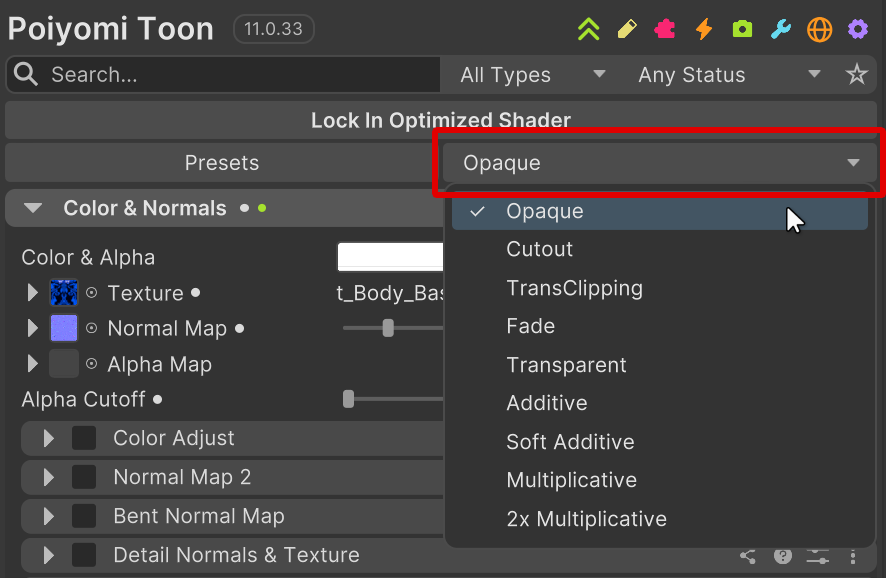
This setting is critical to determining how a material will render, and it's important to know what options are available. This is always the most important step in your Avatar creation journey!
Base Presets
Opaque
- Render Queue:
Geometry2000 - ZWrite:
On
The default rendering mode in Unity, typically recommended for general usage. Commonly used for objects with no transparency at all, such as concrete, wood, solid plastic, human skin, etc.
Cutout
- Render Queue (Built-in):
AlphaTest2450 - Render Queue (URP):
AlphaTest +1002550 - ZWrite:
On
Similar to Opaque, but allows a yes/no for whether a pixel should be rendered. This is suitable for objects with general transparency, like clothing with holes in it, hair using hair cards, etc.
By default, cutout is binary: it either renders or it doesn't. You can use certain options to improve partially transparent areas and edges:
- Dithering uses a technique that introduces noise in order to provide a perceptually smoother transition between two sharp differences in alpha.
- Alpha to Coverage uses partial transparency values to provide variable transparency levels when the viewer is using Multi-Sampled Anti-Aliasing (MSAA). The number of transparency levels is equal to the MSAA level (x2, x4, x8, etc). VRChat allows users to select the number of MSAA levels they want to use through the in-game Graphics Settings, so it's best to make your material still look good even with no MSAA.
You can enable MSAA in your Unity project by going to Edit > Project Settings > Quality and find the Anti Aliasing options. Use a starting level of MSAA x4 and feel free to adjust to see how they appear with different MSAA levels.
Alternatively, VRWorldToolkit can set up post-processing for you, which enables MSAA, even in avatar projects!
Transparent Presets
These presets are transparent and primarily use the Alpha value to determine how to blend with the background. Transparent presets allow partial blending between the transparent material's color and the background color. This effect should be used sparingly, as it can cause a number of issues due to the problems inherent in realtime transparency stacking.
To learn more about transparency issues, and how to mitigate some of them, check out this video:
TransClipping
- Render Queue (Built-in):
AlphaTest +102460 - Render Queue (URP):
AlphaTest +1102560 - ZWrite:
On
TransClipping is like Transparent, but will write to the Z-buffer and render on the AlphaTest queue with +10. This can sometimes fix certain transparency issues, but may cause other issues.
Fade
- Render Queue:
Transparent3000 - ZWrite:
Off
Fade is a fully transparent preset, and allows an object to be completely faded away when its alpha value is 0. This is useful for things that need reliable partial transparency, but also need to disappear completely. Therefore, this does not work with specular highlights or reflections.
Transparent
- Render Queue:
Transparent3000 - ZWrite:
Off
Transparent is like fade, but will keep specular highlights and reflections, like real transparent materials. This is more useful for rendering transparent physically-based materials, like glass, water, etc.
Color Blend Presets
These presets are transparent, but primarily use the color instead of the alpha to determine how the material should blend with the background. These are similar to the blending modes used in applications like Photoshop and Substance Painter. They tend to blend in more stable ways than the Transparent presets, but are less flexible and more suitable for stylistic effects.
Additive
- Render Queue:
Transparent3000 - ZWrite:
Off
Additive adds the color of the material to the background. This tends to brighten the background. Black areas will be fully transparent, while white areas will be most visible.
The additive preset will always either keep or brighten the background color, by nature.
Soft Additive
- Render Queue:
Transparent3000 - ZWrite:
Off
Soft Additive is similar to Additive, but instead of using the material color directly, it uses the material color multiplied by one minus the background color. This means that when the destination color is very bright, the amount of blending will be very little. This prevents the additive blending from being too strong.
The soft additive preset will always either keep or brighten the background color, by nature.
Multiplicative
- Render Queue:
Transparent3000 - ZWrite:
Off
Multiplicative multiplies the background color by the material color. This tends to darken the background. It's useful for creating tinted effects. Black areas will be fully opaque, while white areas will be fully transparent.
The multiplicative preset will always either keep or darken the background color, by nature.
2x Multiplicative
- Render Queue:
Transparent3000 - ZWrite:
Off
2X Multiplicative is similar to Multiplicative, but instead of simply multiplying the material color by the background color, it ends up multiplying the result by 2. This means that it's capable of slightly brightening the background when white, but can still darken all the way to black.
Technical Details
Options
Render Presets Set a bunch of options for how a material should render. They are all set to the default values, but if you know what you're doing, you can adjust them in the Rendering Settings section.
The options that are configured by Rendering Presets are:
- Render Queue [
render_queue] - Render Type (internal only) [
render_type] - Force Opaque [
_AlphaForceOpaque] - Alpha Cutoff [
_Cutoff] - RGB Source Blend [
_SrcBlend] - RGB Destination Blend [
_DstBlend] - Additive RGB Source Blend [
_AddSrcBlend] - ZWrite [
_ZWrite] - Alpha Premultiply [
_AlphaPremultiply] - Outline RGB Source Blend [
_OutlineSrcBlend] - Outline RGB Destination Blend [
_OutlineDstBlend] - Outline Alpha Destination Blend [
_OutlineDstBlendAlpha]
These options are also set anytime a Rendering Preset is selected, although they remain the same across all presets:
- RGB Blend Op [
_BlendOp = Add(0)] - Alpha Blend Op [
_BlendOpAlpha = Max(4)] - Alpha Source Blend [
_SrcBlendAlpha = One(1)] - Alpha Destination Blend [
_DstBlendAlpha = One(1)] - Additive RGB Destination Blend [
_AddDstBlend = One(1)] - Additive Alpha Source Blend = [
_AddSrcBlendAlpha = Zero(0)] - Additive Alpha Destination Blend = [
_AddDstBlendAlpha = One(1)] - Alpha to Coverage [
_AlphaToCoverage = 0] - ZTest [
_ZTest = LessEqual(4)] - Outline Alpha Source Blend [
_OutlineSrcBlendAlpha = One(1)] - Outline RGB Blend Op [
_OutlineBlendOp = Add(0)] - Outline Alpha Blend Op [
_OutlineBlendOpAlpha = Max(4)]
Blending
One of the core differentiating factors for a preset is how it blends with the background. This is defined by a blend operation, a source factor, and a destination factor. Assuming the blend operation is set to Add, which it is in all Poiyomi presets, They're blended as such:
output = (source factor) * (source color) + (destination factor) * (destination color)
This simple equation can be used to create a wide range of blending effects. To learn more about blending, you can read the Unity Documentation for ShaderLab command: Blend.
Here's a summary of the blend modes used in each preset:
| Preset | Source Factor | Destination Factor | Effect Summary |
|---|---|---|---|
| Opaque | One | Zero | Opaque Blending |
| Cutout | One | Zero | Opaque but with Cutouts |
| Fade | SrcAlpha | OneMinusSrcAlpha | Fully alpha-driven transparency |
| Transparent | One | OneMinusSrcAlpha | Alpha-driven transparency keeping reflections/highlights visible |
| TransClipping | SrcAlpha | OneMinusSrcAlpha | Fade, but with Z-writing |
| Additive | One | One | Color-based additive blending |
| Soft Additive | OneMinusDstColor | One | Color-based additive blending that takes background color into account |
| Multiplicative | DstColor | Zero | Color-based multiplicative blending (tinting) |
| 2x Multiplicative | DstColor | SrcColor | Color-based multiplicative blending (tinting) that can brighten |