Substance Painter
Adobe Substance Painter is frequently used for authoring PBR (Physically Based Rendering) texture maps, and works well for creating realistic looking textures. Provided on this page are some project settings and export presets for Substance Painter that can be used to easily export textures for use in a Poiyomi Material.
Project Settings
For the most part, you'll be using whichever default Substance Shader was assigned in your Project. Usually that would be pbr-metal-rough or asm-metal-rough, etc.
To ensure you are using whichever one you prefer, click Window -> Views -> Shading settings from the Menu Bar in Substance Painter.
Most, if not all Shaders in Substance Painter, should work when previewing the Material. However, if you plan to use Opacity to control levels of transparency, choose a version that supports it. If you are painting areas for things such as Glass, you would want to use something like pbr-metal-rough-with-alpha-blending or similar. In Substance Painter v9.1.0 and newer versions, asm-metal-rough added support for transparency, which can be enabled in the Shading settings by toggling Enable alpha test or Enable alpha blending.
Export Presets
Download v10.0 Export Template
Download v10.0 Export Template with Extra Maps
To use these presets, download them and add them to your substance project either by navigating to File -> Import Resources and adding them, or dragging them onto the shelf (which will open the same interface with the presets pre-selected)
Alternatively, place these presets in your exports folder located at: C:\Users\*UserName*\Documents\Adobe\Adobe Substance 3D Painter\assets\export-presets
Older versions of Substance Painter will not read Export Presets if it was encoded from a newer version. This is a known limitation that's outside of our control.
For reference, our Substance Painter templates were encoded in v7.4 (2021 Edition). These export templates are expected to work fine on v7.4 and onwards. To check which version your version of Substance Painter is on, click on Help -> About Substance 3D Painter from the window menu bar.
If you know how to create Export Templates in Substance Painter, refer to the guide below on how our Templates are used.
Usage
Textures
Textures have specific naming calls when used: t_$textureSet_Yourtexture(.$udim). t indicates it's a texture (and groups textures together when sorted), $textureSet which the name of the Material set set being used, and $udim which refers to the UDIM Tile of the texture (if your Substance Project is using UDIM).
t_$textureSet_BaseColor(.$udim): Place in theMain Textureslot in Color & Normals.t_$textureSet_NormalMap(.$udim): Place in theNormal Maptexture slot in Color & Normals. Make sure to mark it as a normal map in the texture import settings.t_$textureSet_AmbientOcclusion(.$udim): Place in theAOtexture slot in Light Data. Make sure to uncheck sRGB in the texture import settings.- Three AO maps are encoded in the texture. This includes
Input AO,Mixed AO, andUser3for flexibility.User3is used for Customized AO mapping. Poiyomi Shaders supports exposing these maps through the sliders in their AO Slots.
- Three AO maps are encoded in the texture. This includes
t_$textureSet_MetallicSmoothnessMaps(.$udim): Place in thePacked Mapstexture slot in Reflections & Specular. Make sure to uncheck sRGB in the texture import settings, and that all of your sliders are set to 1.0, which uses the map's value. Note that this usesUser0andUser1channels in Substance Painter for the Reflection and Specular masks respectively, which can be hand-authored to control the amount of reflection and specular.t_$textureSet_EmissionMap(.$udim): Place in theEmission Maptexture slot inEmission.
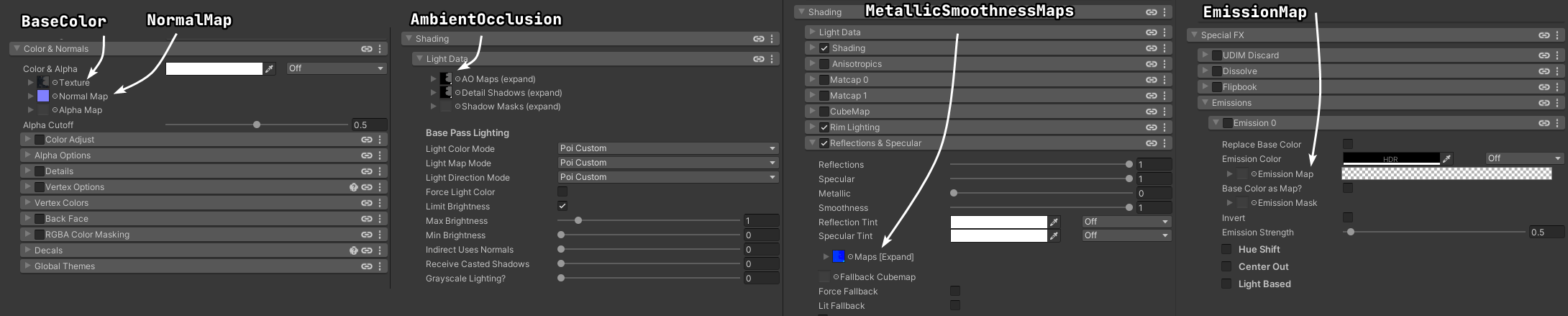
v10 Export Texture Locations (click to zoom)
Usage Notes
PBR textures look best when paired with realistic lighting. To take best advantage of this, good Shading settings are recommended. Some good starting points include:
- Realistic shading
- Multilayer Math shading, using only the first layer with a Border between
0.4and0.7and a Blur of0.4-0.6 - Wrapped shading with a wrap of around
1.0and a normalization of around0.5
Matcaps are not recommended, as they don't respond to the lighting environment the way metallics and specular do.
PBR shading relies on the world lighting being well-defined and correct. In worlds that are not lit correctly, base shading and metallic/specular effects may look wrong, or may be completely invisible.
ExtraMaps
When using the ExtraMaps preset, additional textures are exported:
- All textures from the v10 preset.
t_$textureSet_GlobalMask(.$udim): Place in one of the Global Mask texture slots inGlobal Mask. Make sure to uncheck sRGB in the texture import settings. Note that this uses the custom User channels in Substance for your Masks. This Template is programmed to useUser10for theRchannel,User11for theGchannel,User12for theBchannel, andUser13for theAchannel.t_$textureSet_ToonStandardSpecular(.$udim): Slightly different version of the Metallic Smoothness Map made specifically for setups requiring minimal VRAM, such as VRChat's Toon Standard.- The channels are intentionally mapped to reduce VRAM, which is different than Standard PBR mapping. Use the Channel Mapping in Toon Standard to line them up.
- Use
(R)for Metallic,(G)for Glossiness, and(B)for AO.
t_$textureSet_SubsurfaceScattering(.$udim): Exports theScattering colorandScatteringchannels into this map. Use this in Poiyomi's Subsurface Scattering feature.t_$textureSet_OutlineSizeMask(.$udim): Exports theUser2channel. Use this for the Outline Size Mask, if using the Outlines feature.t_$textureSet_AlphaMap(.$udim): Separate Alpha/Opacity map for the base texture. Can be used to optimize the base texture, or for other Alpha modifiers in the shader.- You should not use Alpha Map unless it's absolutely necessary. This is because the Alpha is already encoded into the Main Texture when using the
Opacitychannel in Substance Painter.
- You should not use Alpha Map unless it's absolutely necessary. This is because the Alpha is already encoded into the Main Texture when using the
t_$textureSet_Height(.$udim): Height map. Currently best used as a height texture in Parallax Heightmapping. Can also be used directly as a vertex offset, though this usually does not have the same effect.