
Authored by Thryrallo, Thry Editor (short for "Thryrallo Editor") is the underlying framework that powers the User Interface of the Shader. It serves as the core Shader Inspector and Editor for all the features used across Poiyomi Shaders.
Not only does it serve as the primary framework for the Material User Interface, there are also a few other features under the hood that are worth knowing about. This page will cover all the known features included with Thry Editor, with extended information on some larger features found on the sidebar.
User Interface
Search
Filters the properties by name, indicated by the exposed text field on the top header. Start typing in the field to begin searching.
When typing in a keyword, the UI will only show headers or properties with the searched name. The user interface will filter out any modules that do not match the keyword you search.
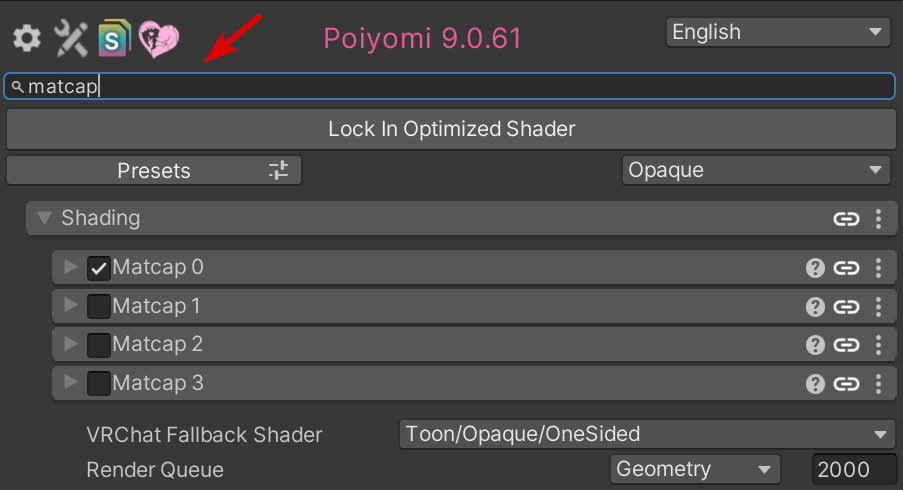
Example of the Search feature, showing only the headers that match the word "matcap"
Presets
Left click opens the presets UI. Here you can select a number of presets and see live how they change your material. Afterwards you can either apply the presets or discard the changes.
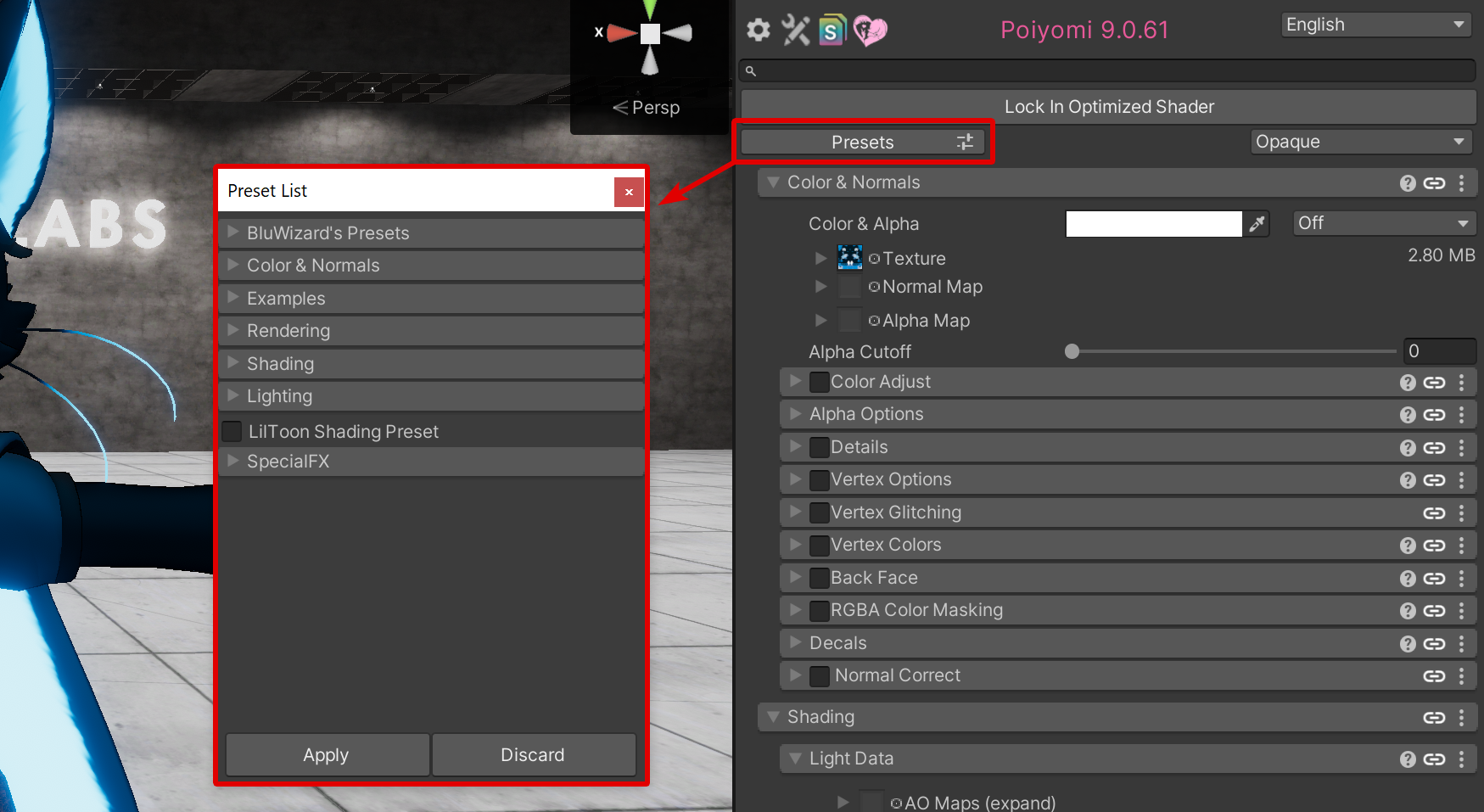
Click the Presets button to open the Presets List.
Right Clicking opens the Quick Presets context menu. Here you can only select one preset, which is applied immediately.
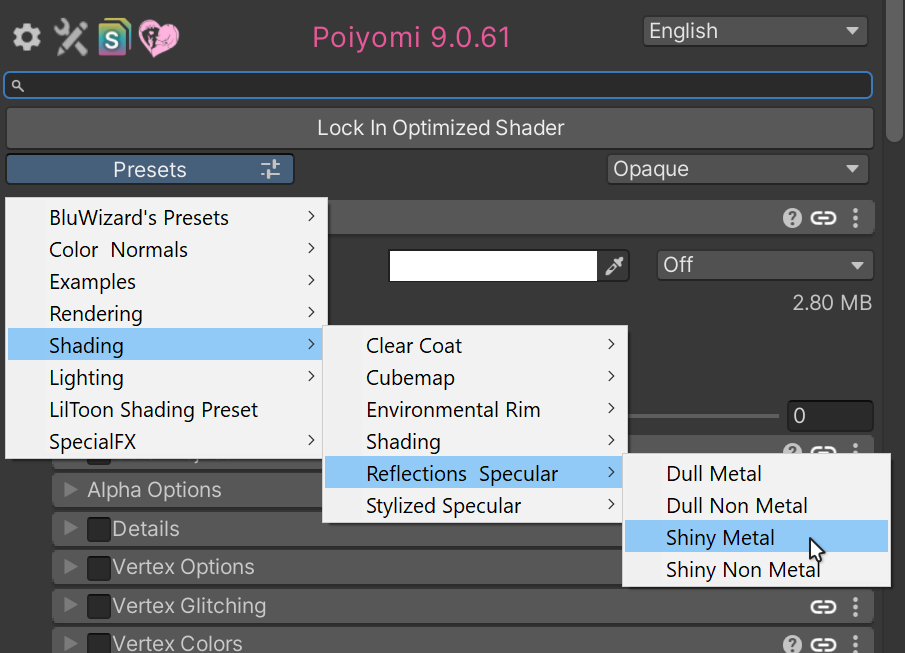
Right-Click the Presets button to quickly select a Preset.
You can also create your own Presets using this feature. See the Documentation Page to learn more.
Global Linking
A spiritual successor to the former Material Linker, Global Linking follows the same principles but is tuned into a more refined, reliable array system.
Global Linking allows linking multiple Materials together to follow the same consistent properties using a JSON string, allowing for non-destructive and repeatable configurations. This eliminates the requirement of hard-linking materials together.
To use Global Linking:
- Press the new
Global Linkicon in the Material Section - Create a new link by typing in a name, and click
Add. - The Global Link has been created.
You can then apply your Global Link to other materials from the following:
- On the other Material, press the new
Global Linkicon. - Click the link you created from the list of Available Links.
- A prompt will ask you to either,
- Apply Properties from the link (Recommended)
- Override Properties on the link with the values on your material (Not Recommended)
- The Global Link has been added.
Now whenever you make changes to the Globally Linked section, the values will be instantly updated for all other materials that are linked as well. The Global Link icon will be indicated with Green color to show you that the properties have been globally linked.
Unbound Properties
Materials are a collection of properties. When you change shaders the properties used by the old shader are still saved to the material. This the benefit that when swapping back to the old shader your settings are still there. However this can also have unwanted side effects like increased material file size.
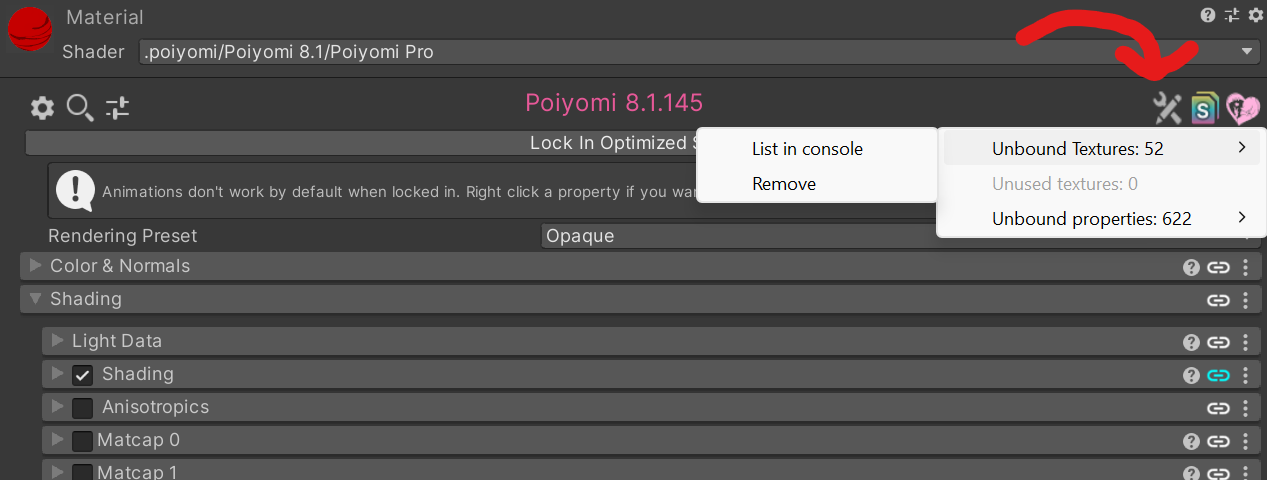
Using the Tools icon you get options for unbound properties.
- Unbound textures: Textures that are saved to your material but not used by the shader.
- Unused textures: Textures that are used by your shader, but inside a disabled section.
- Unbound properties: Properties that are saved to your material but not used by the shader.
For all these options you can either list them in the output console or remove them from the material.
VRAM Estimated Consumption
In each Texture Slot, a number will appear on the right-hand side of the Texture Slot field. It shows a value in either KB (Kilobytes) or MB (Megabytes).
This number informs the user on how much Texture Memory (VRAM) that the assigned Texture is expected to consume. The amount indicated can greatly impact how other users load your Avatar's texture when it is being rendered on their end.
To learn more about how Texture Memory impacts performance, see this page.

Asterisk Indicator
Configurable in ThryEditor Settings, an asterisk (*) will appear next to a Material Property that has deviated away from it's default value. This is useful to see which values are not at it's default, and can assist with debugging issues in the Editor.
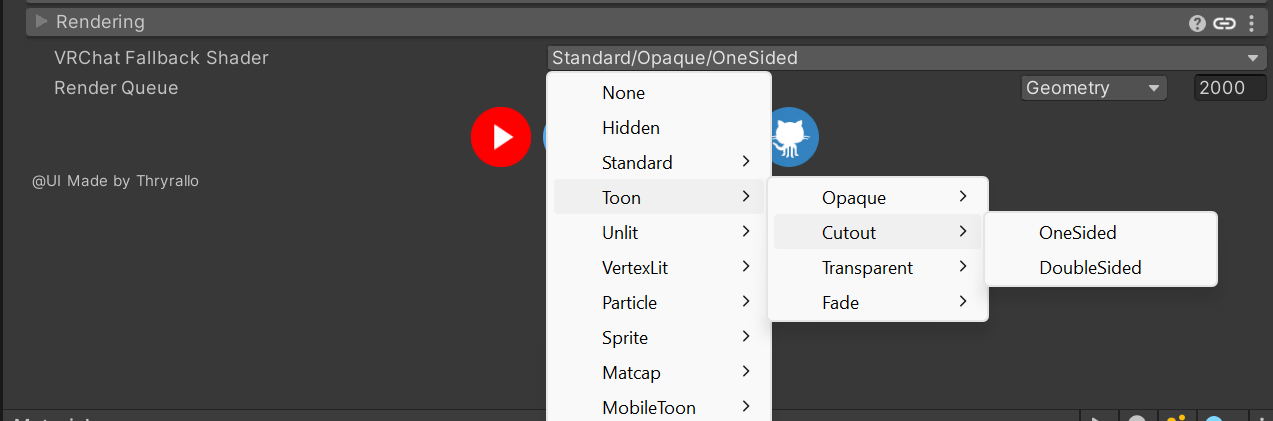
VRChat Fallback Shader
The Fallback Shader option generates a tag for the material that informs VRChat which shader to use when your shaders are hidden. See Rendering: VRChat Fallback Shader for more details.
Texture Packer
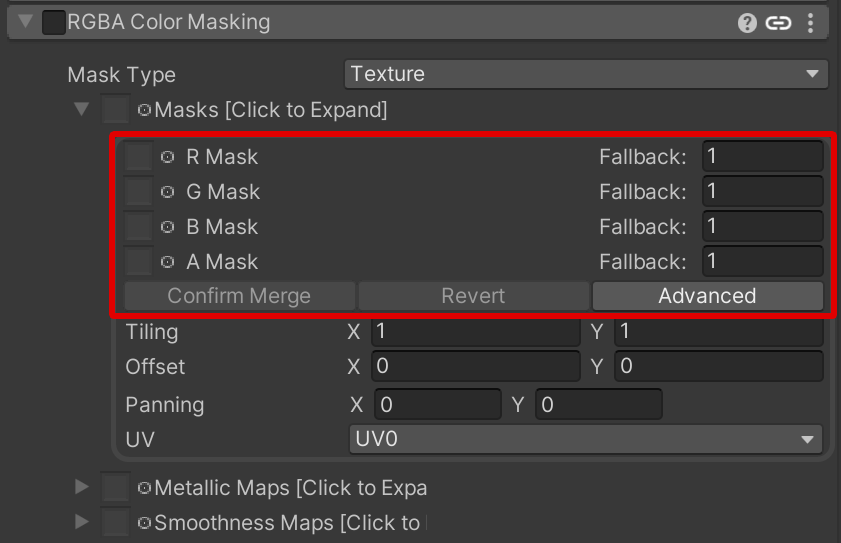
The Texture Packer is a builtin tool to combine multiple textures into one or rearrange its channels, and is integrated into many Data Texture Slots in Poiyomi Shaders.
Shaders can specify which textures should be represented by a texture packer. So under some textures (mostly masks) you will find shown dropdown with texture slots for source textures, a Confirm button and a Revert button. While configuring, you can see a preview of the result in realtime. However your changes will not be correctly applied until you click the Confirm button.
Options per texture slot:
Texture Slot: Source textureFallback: Value to use if the source texture is not setInverted: Invert the valueChannel: Select the channel to use. TheMaxchannel uses the max value of RGB channels.
Notes
Notes is a basic feature allowing the user to add text to the Shader's module. This can be useful to help you remember what you are using the module for. The Note is only applied per Material.
To add or edit a Note, press the Context Menu (3 dots icon) and click Set Note.
Material Text Serializer
The Material Text Serializer allows for basic Copy/Paste of Material Settings from in and outside of Unity Editor.
Press the Context Menu (3 dots icon) and click Copy as Text to copy the material settings from the affected section(s) to your computer's clipboard in a JSON format. If there are settings shared with you, use Paste as Text to apply the JSON from your clipboard into the material.
Due to limitations, only Material Properties such as Toggles, Sliders, Floats, Ints and Vectors, can be used in the JSON. Texture GUIDs are not supported.
Cross Shader Editor
The Cross Shader Editor is a panel that allows you to mass-edit your Poiyomi Materials, all at once. Anything you edit or change in this panel will be applied to all Materials that are referenced.
Learn more about the Cross Shader Editor.
Settings
The Settings window can be opened via the Gear icon in the top left corner of a material inspector. Or using the menu item of the top bar Thry -> Shader UI -> Settings. This includes Localization, Auto-Set Anchor, and a few more settings.
Learn more about Thry Editor Settings.
Tools
There are a few tools integrated into Unity for assistance on using certain Shader features. A few examples include Fix Keywords, Unlocked Material List, Flipbooks Creator, and more.
Learn more about Thry Editor's Integrated Tools.
Unity Integrations
Thry Editor integrates itself within the Unity Project from the Menu Bar and in context menus. Here are some of the hidden features you can find.
Lock / Unlock All
You can quickly and efficiently Lock or Unlock ALL Poiyomi Materials found within an Avatar with just a few clicks. This can be helpful when ensuring things are properly locked prior to uploading.
To access it, Right-Click on your Avatar. In the context menu, hover over Thry -> Materials, then click either Lock All or Unlock All.
Lock Allwill lock all materials and referenced materials in Animators, whileLock Rendererswill lock only materials on Mesh Renderer components.
You can also do the same thing to Folders in your Unity Project by Right-Clicking on a Folder that contains Poiyomi Materials as well.